 MolForma
Recipe 1 Building from atoms and bonds (ethanol)
Build a molecule with the element buttons and the “Place”, “Bond” and “Delete” tools only, without skeleton or substituent templates. One carbon becomes methane; clicking one of its hydrogens with carbon and another with oxygen gives ethanol in three clicks. Then run a B3LYP/6-31G* optimization and frequencies, and, as variations, build acetaldehyde and dimethyl ether.
| What you build | Details |
|---|---|
| Molecule | Ethanol C₂H₆O (9 atoms, charge 0, singlet) |
| Features | Placing atoms and replacing hydrogens, auto-added hydrogens, cleanup, measuring distances and angles, deletion, bond types, inserting an atom into a bond |
| Calculation | B3LYP/6-31G*, optimization → frequencies |
| Run time | About 2 minutes (4 MPI processes) |
| Computer | AMD Ryzen 7 2700X (8 cores, 16 threads), 32 GB of memory, NWChem 7.3.1 on Linux |
| Practice data | ethanol.molforma.json (cleaned-up starting structure and settings) |
1. Place one carbon
- Start an empty molecule with “File → New”.
-
Press “C” among the element buttons of the parts palette on the left. The tool in the left column becomes “Place”, and “Part to place Carbon (C)” and “Bond type” appear above the 3D view.
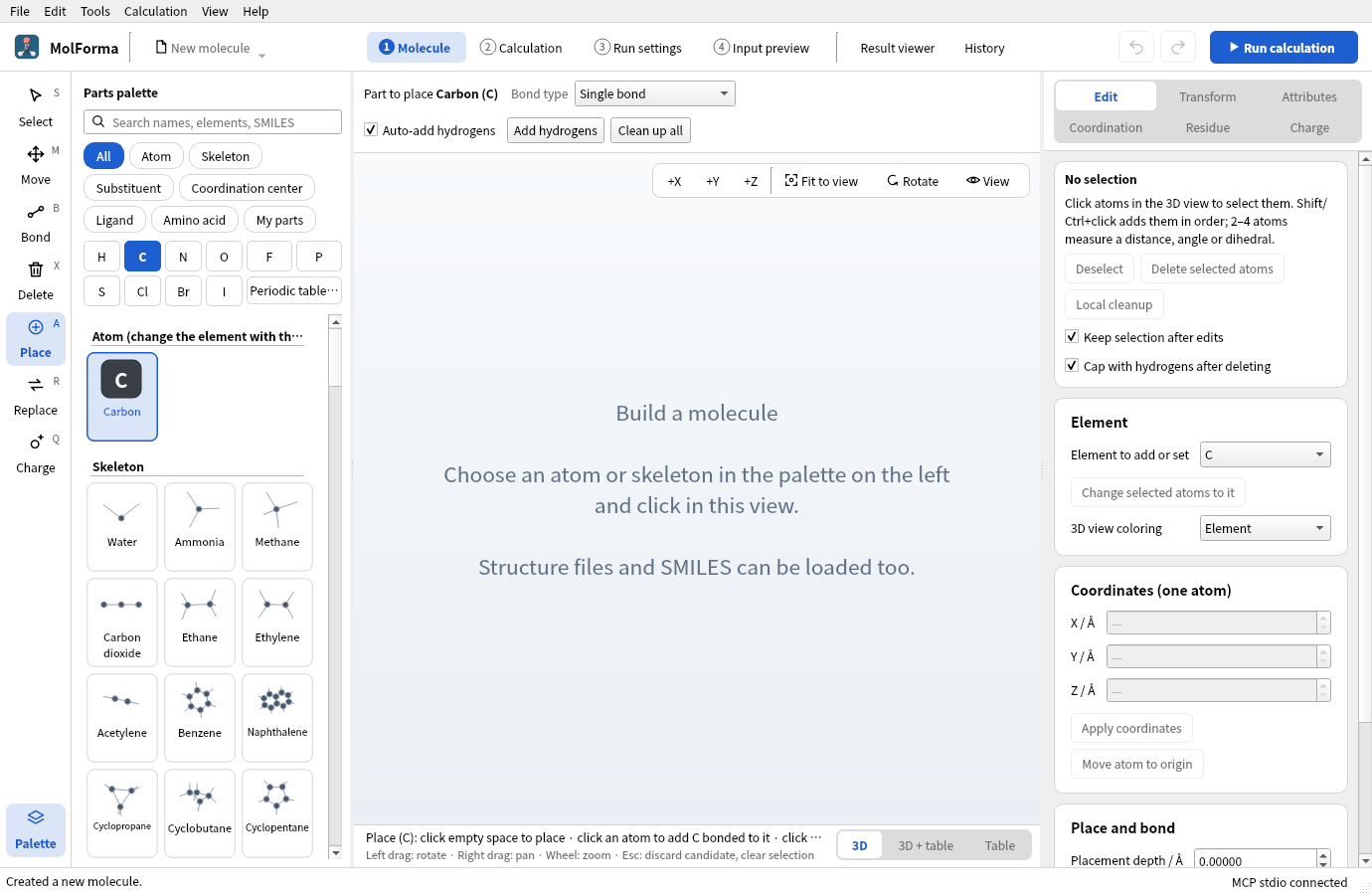
Figure 1 Pressing “C” switches to the “Place” tool and shows the part to place and the bond type above the 3D view.
- Check that “Auto-add hydrogens” above the 3D view is on and “Bond type” is “Single bond”. A double bond left from earlier work would give ethylene in the next step.
-
Click once in empty space in the 3D view. Carbon gets four hydrogens: methane (CH4 · 5 atoms). The first atom goes to the origin wherever you click.
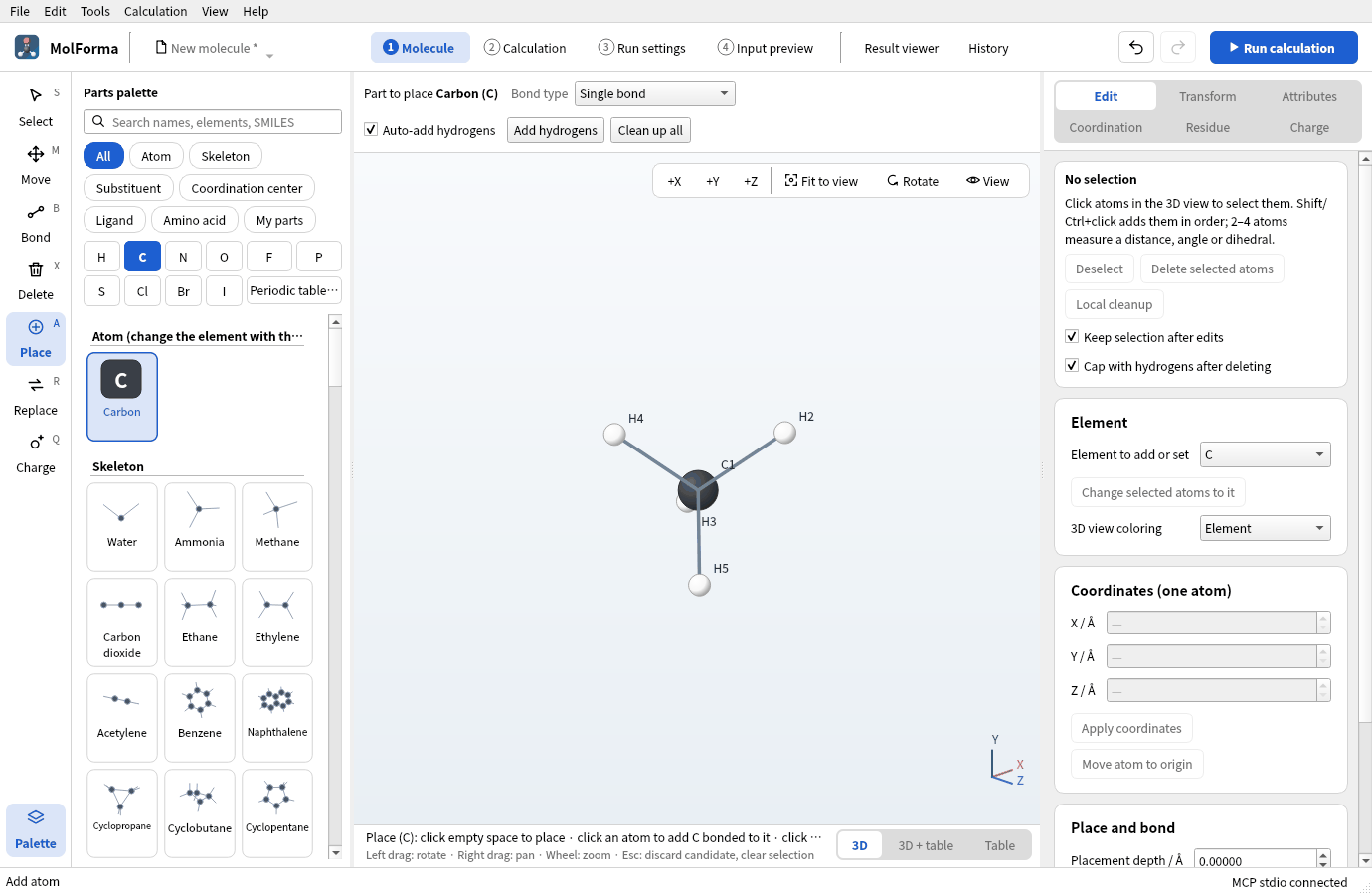
Figure 2 A click in empty space gives methane (CH4 · 5 atoms), carbon with four hydrogens. From figure 2 on, the 3D view is turned by left-dragging so that atoms do not overlap (only the view changes, not the coordinates).
The numbers in the labels (C1, H2, …) are the order of the coordinate lines in “4 Input preview”; they are renumbered from 1 whenever atoms are added or deleted. When you work by number, look at the numbers again after each step.
2. Replace hydrogens with carbon and oxygen
What the “Place” tool does depends on where you click:
| Clicked on | Result |
|---|---|
| Empty space | A new atom there (a separate, unbonded molecule) |
| A hydrogen | The chosen element replaces it, in the direction of the old bond |
| Another atom | A bond grows from it (replacing one of its hydrogens if it has one) |
| A bond | The atom is inserted between the two atoms (used in the variations) |
-
With “C” still chosen, click one of the hydrogens (H2, for example). You get ethane (C2H6 · 8 atoms); the new carbon gets its hydrogens too.
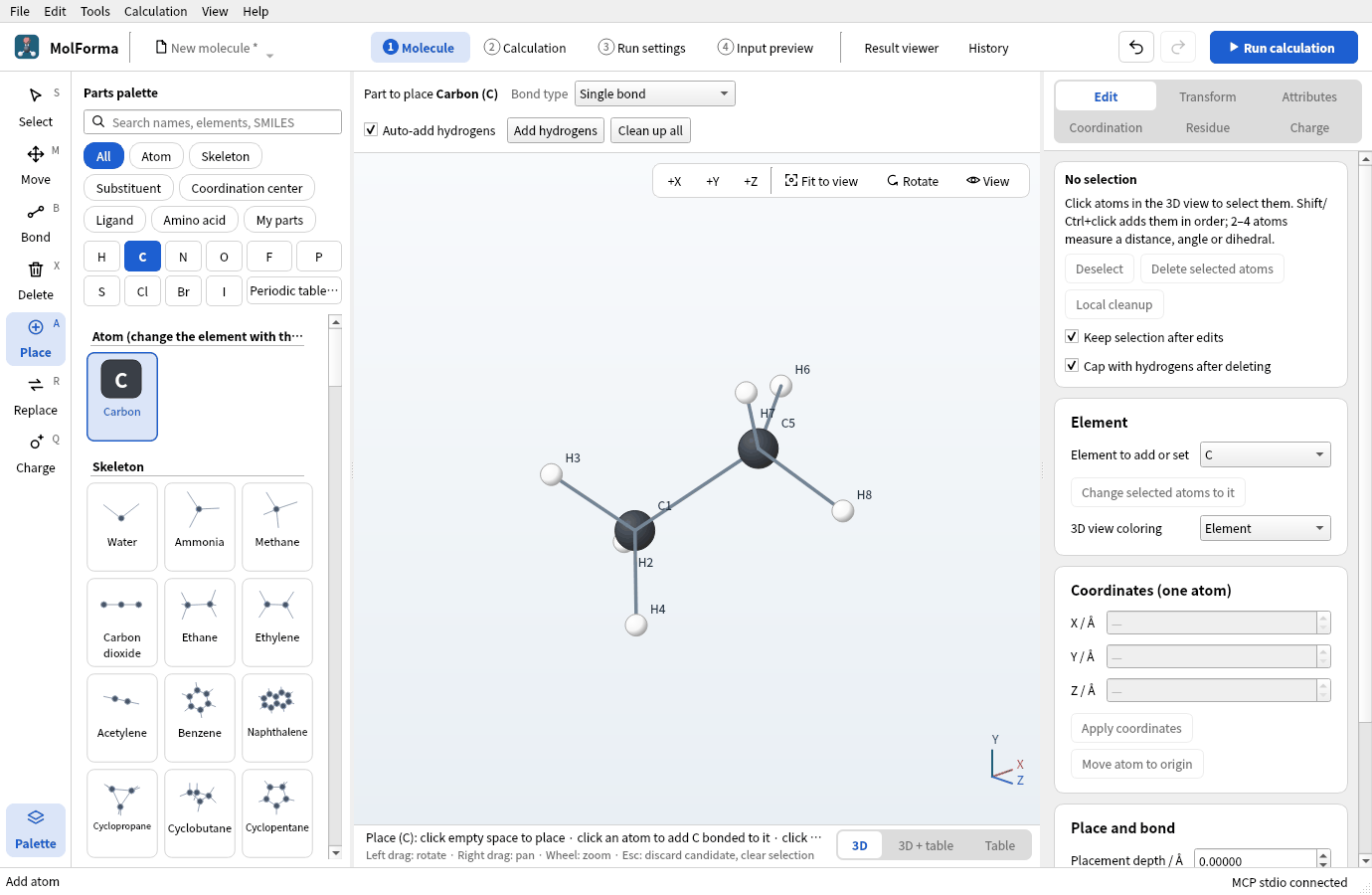
Figure 3 Clicking H2 replaces that hydrogen with carbon C5: ethane (C2H6 · 8 atoms).
-
Press “O” and click a hydrogen on the first carbon C1. You get ethanol (C2H6O · 9 atoms), with one hydrogen added to the oxygen.
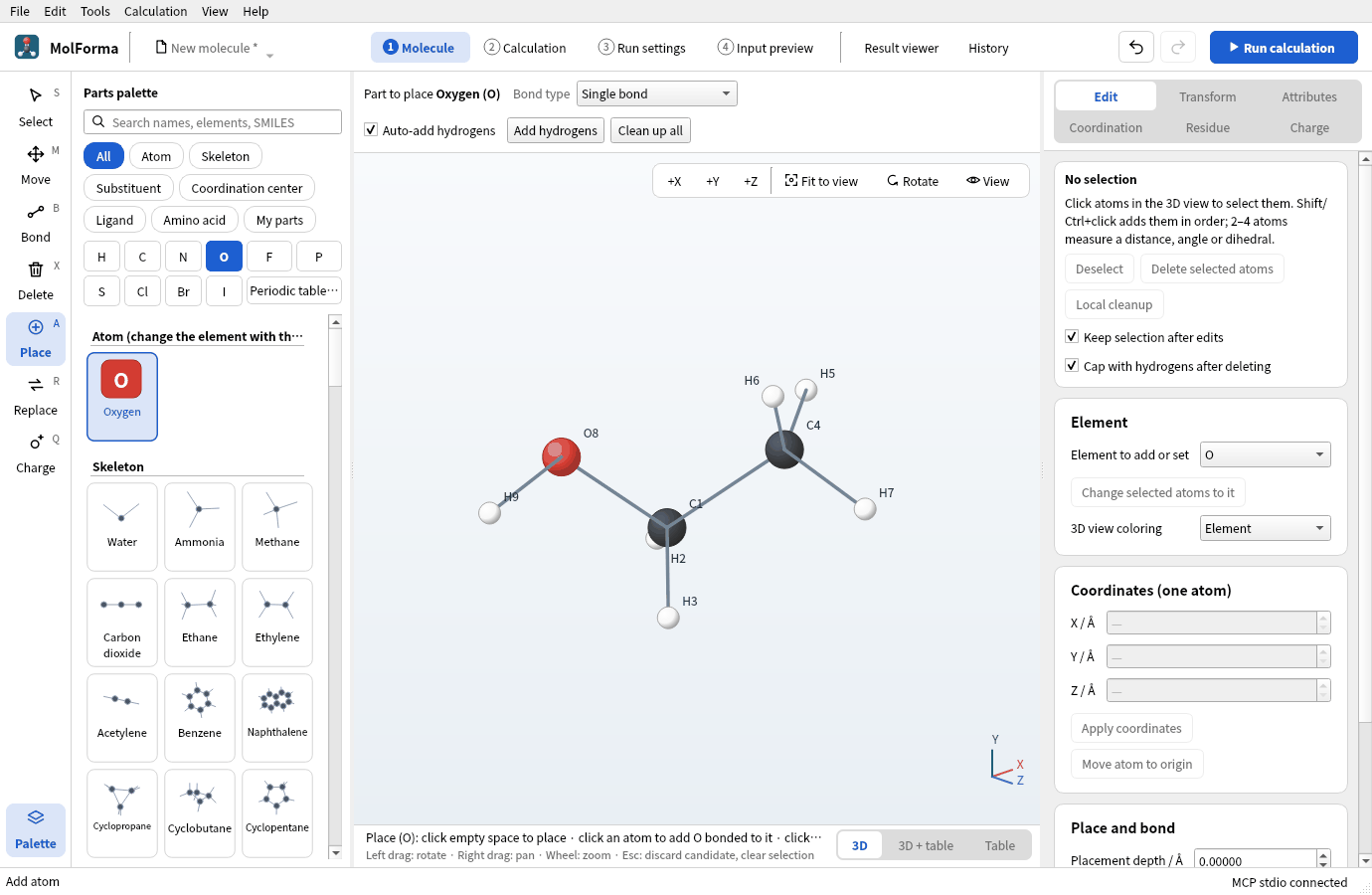
Figure 4 With “O”, clicking a hydrogen of C1 gives ethanol (C2H6O · 9 atoms).
The status bar at the bottom shows the formula, atom and bond counts, charge and multiplicity (C2H6O · 9 atoms · 8 bonds · charge 0 · multiplicity 1). Each click is one “Undo” (Ctrl+Z), so a misplaced atom is undone step by step.
3. Clean up and check
Adding hydrogens puts them in free directions only, so the dihedrals (the methyl group, the O–H) are whatever came out.
-
Press “Clean up all” above the 3D view. The force-field result appears as a candidate in the amber bar (“Candidate: Clean up structure”).
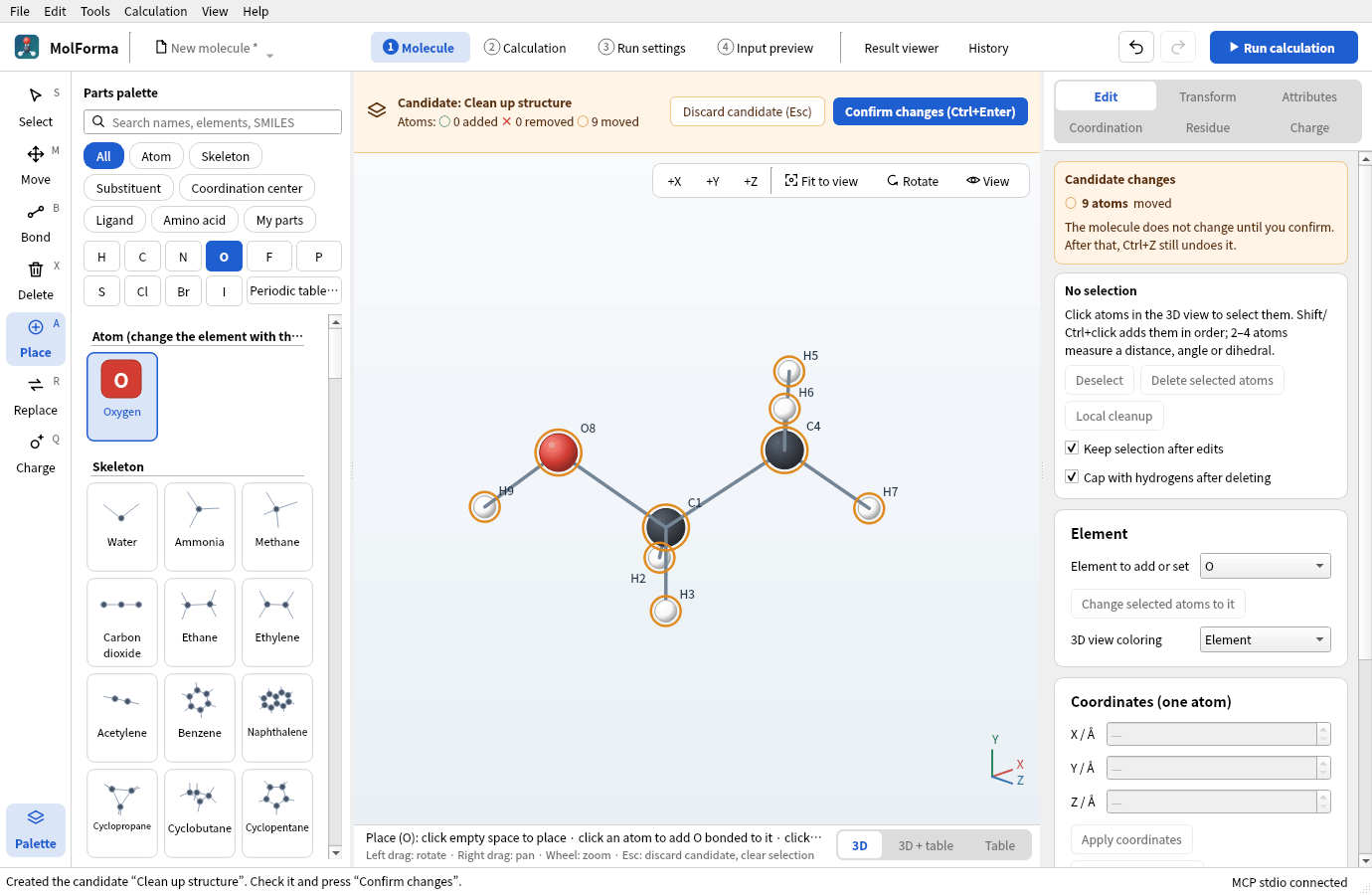
Figure 5 The result of “Clean up all” is shown as a candidate. “Confirm changes” in the amber bar applies it; “Discard candidate” drops it.
- Look at it and press “Confirm changes” (Ctrl+Enter), or “Discard candidate” (Esc).
-
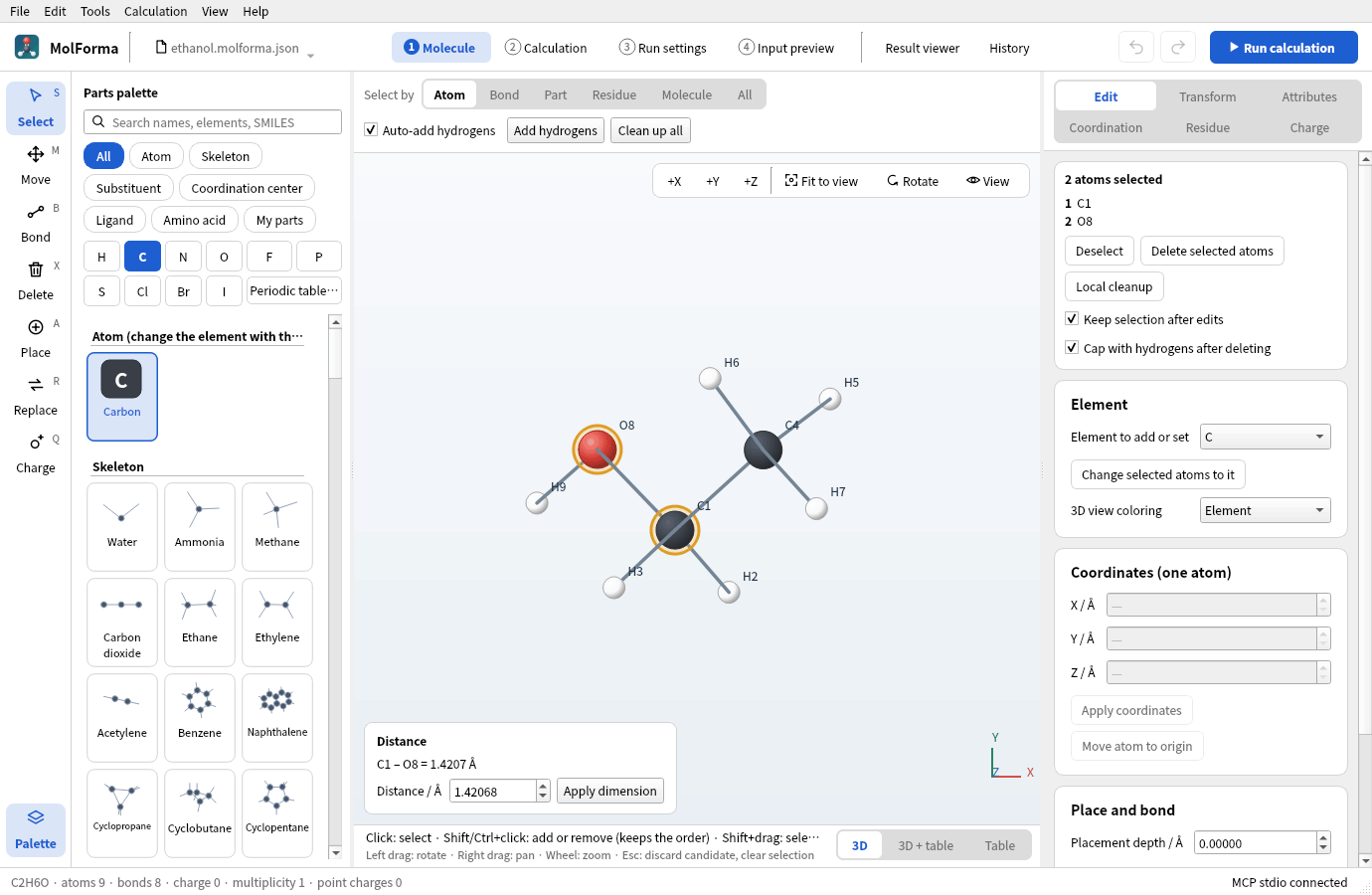
Choose “Select” (S) in the left column, click C1 and then Shift+click O8. The bottom left of the 3D view shows “Distance C1 – O8 = 1.4207 Å”. Three atoms in turn give the angle (at the second atom), four give the dihedral.
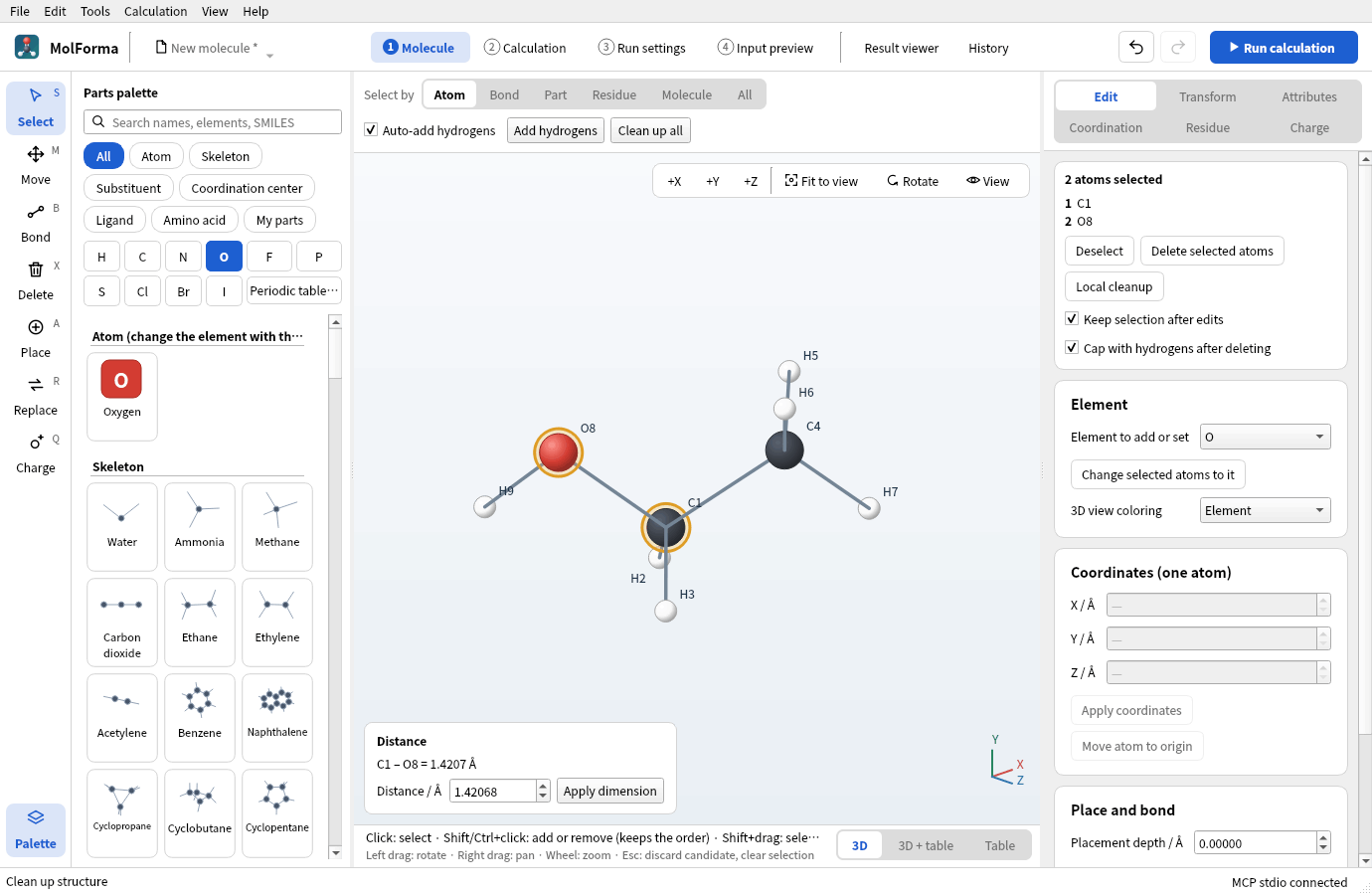
Figure 6 With C1 and O8 selected, the distance appears at the bottom left of the 3D view. Enter a value and press “Apply dimension” to change it.
Entering a value and pressing “Apply dimension” moves the side of the atom chosen last so that the distance, angle or dihedral takes that value (recipe 5).
4. Set up the calculation
- Open “2 Calculation” in the header.
- In “Basics”, set the task to “Optimization → frequencies” and the method to “DFT”. Keep the default DFT functional “B3LYP” and set the basis set to “6-31G*”.
- In “Charge and spin”, check total charge 0 and spin multiplicity 1. “→ RKS (closed shell)” appears under the reference.
-
Check that the check card on the right says “Input can be generated”.
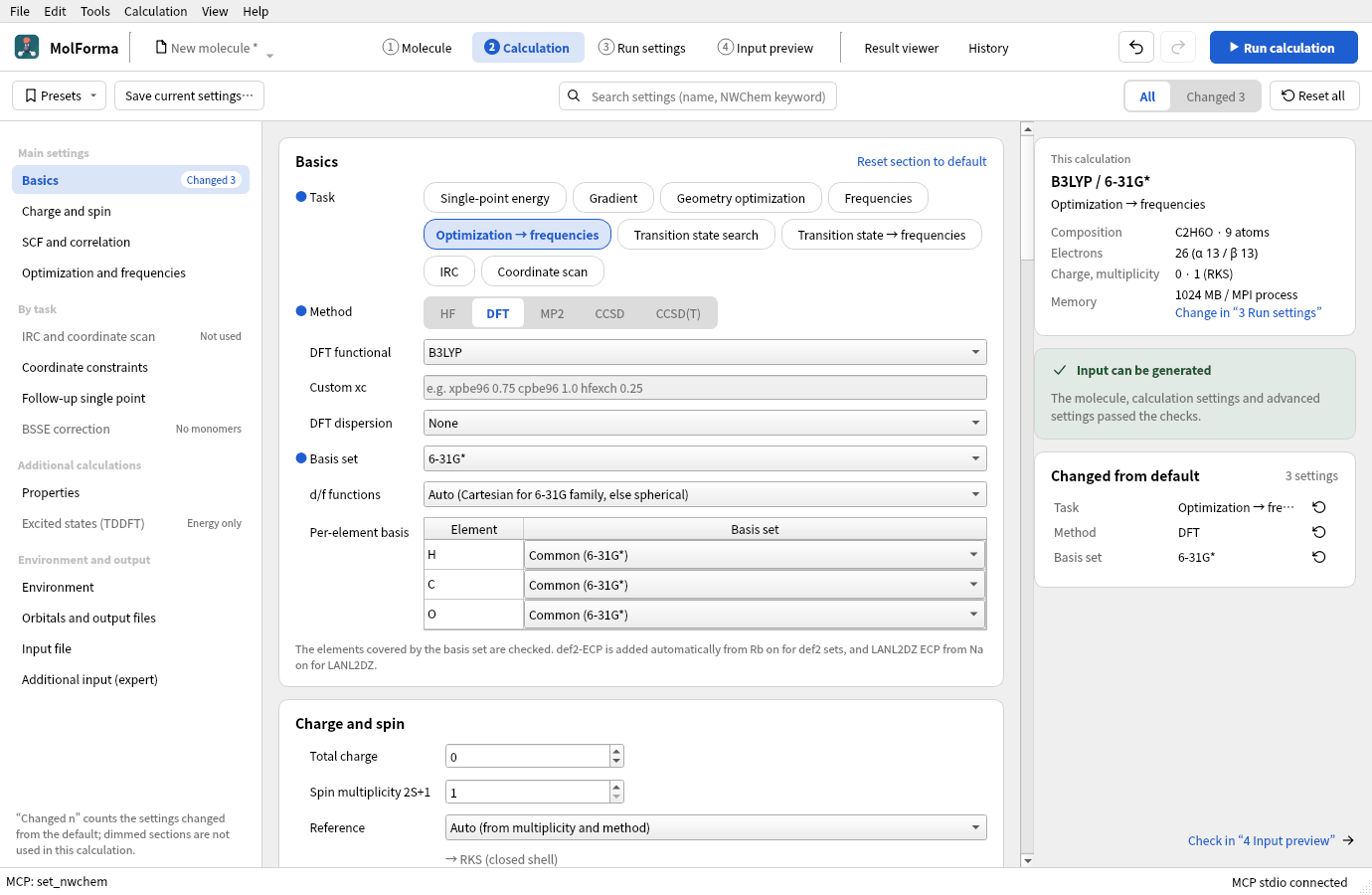
Figure 7 Once the task, method and basis set are chosen, the right side says “Input can be generated” and lists what differs from the defaults.
5. Run and look at the results
-
In “4 Input preview”, check that
geometryhas 9 atoms and the input ends with the two linestask dft optimizeandtask dft frequencies.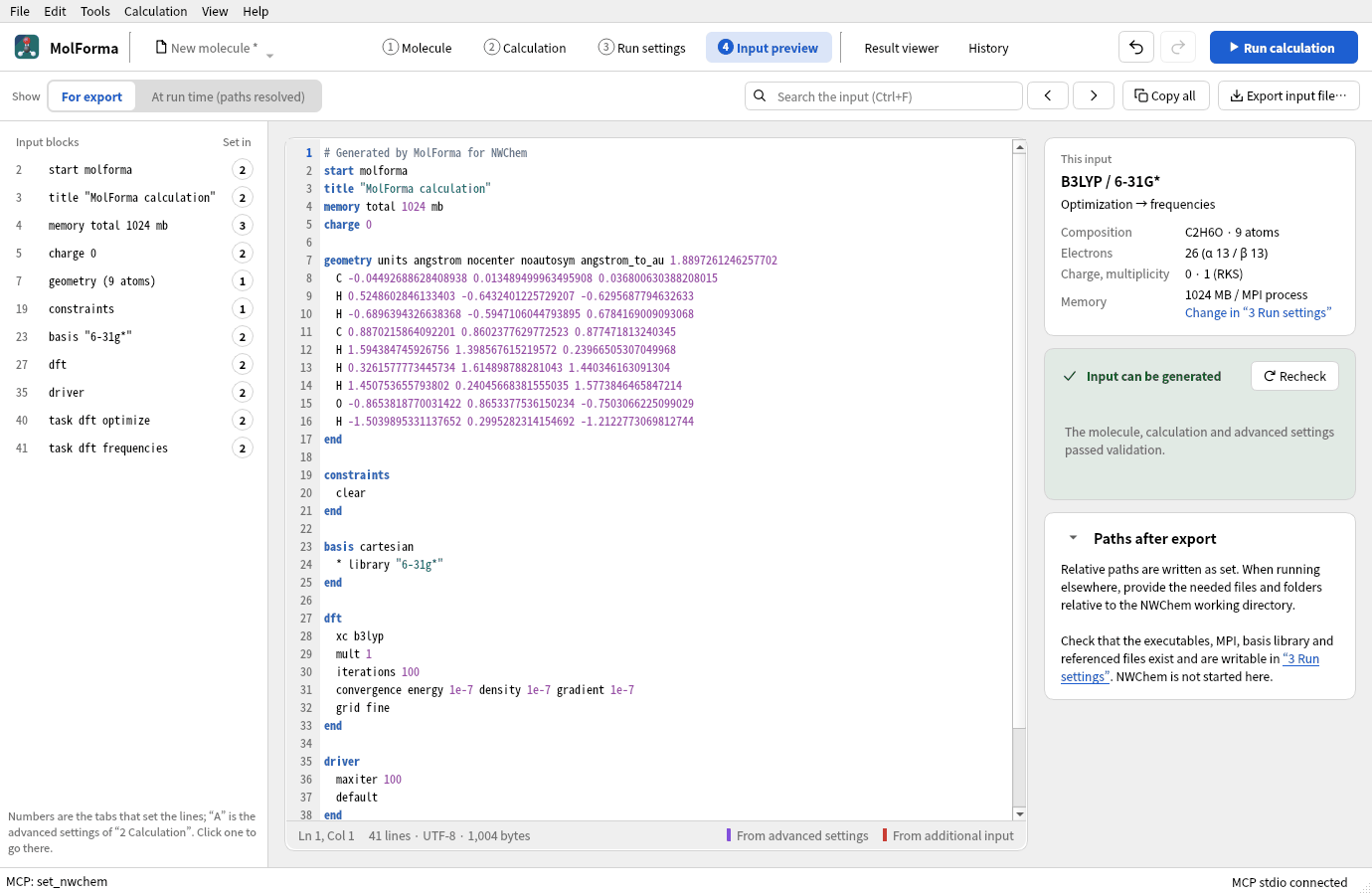
Figure 8 “4 Input preview”. The “Input blocks” on the left jump to each block.
- Before the first run, check the NWChem executable, the MPI process count and the job folder in “3 Run settings” (“Ready to run”).
-
Press “Run calculation” (F5) in the header. The run panel (“Run status and log”) opens on the right with the optimization steps and their convergence tests (Gmax, Grms, …), then the frequency task.
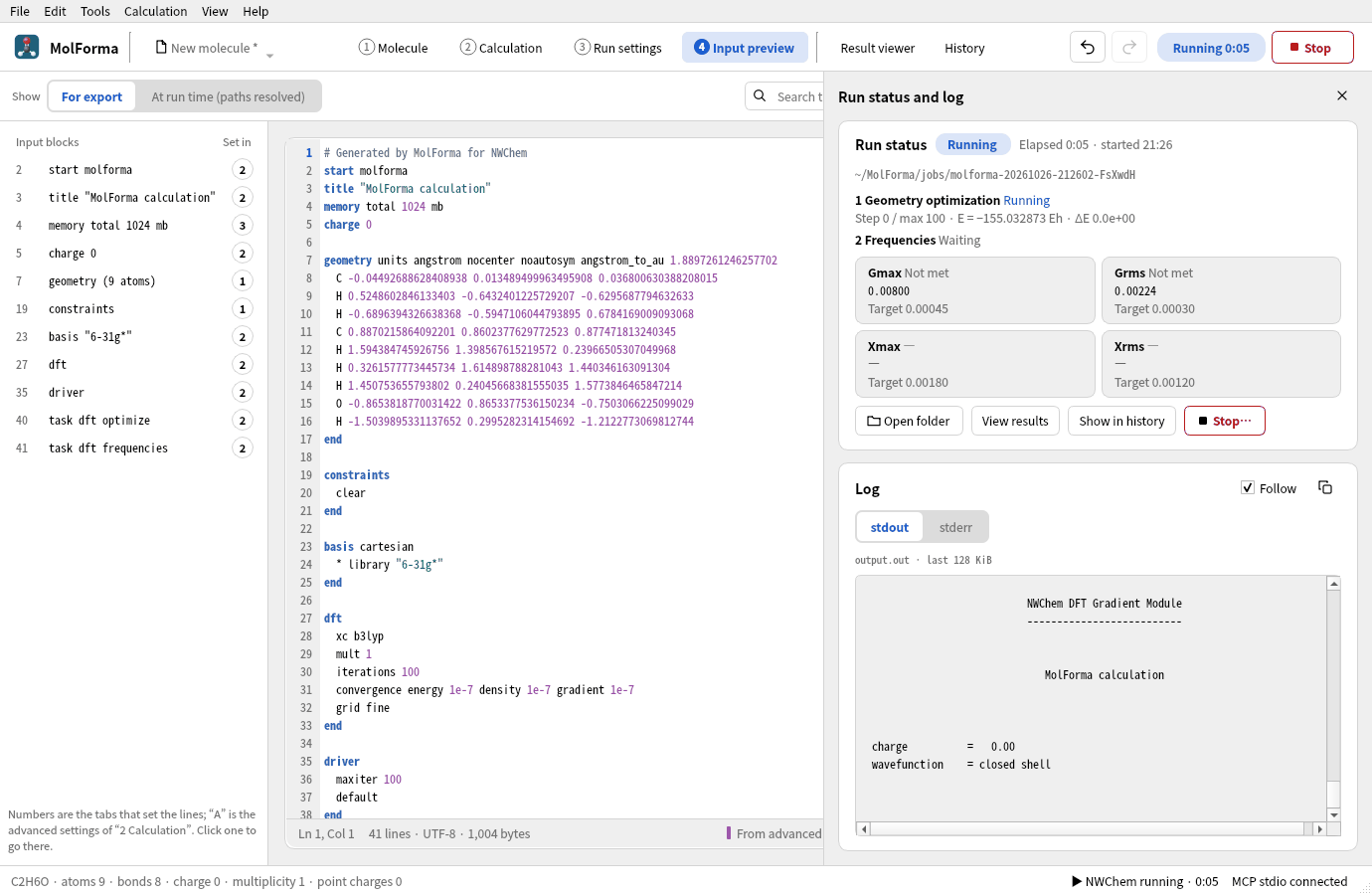
Figure 9 The run panel during the run: the state of each task and the convergence criteria of the optimization (Gmax, Grms, Xmax, Xrms) against their targets.
- When it ends, the result is loaded into the “Result viewer” and the status bar says “Calculation finished:” followed by the convergence, the energy (E = −155.033797408 Eh) and the number of imaginary frequencies (0).
-
In the “Summary” of the “Result viewer”, check the optimization (converged, steps), imaginary frequencies, HOMO–LUMO gap, dipole moment and thermochemistry. The “Vibrations” tab has the IR spectrum and the mode table; choose a row and press play under the 3D view to animate it.
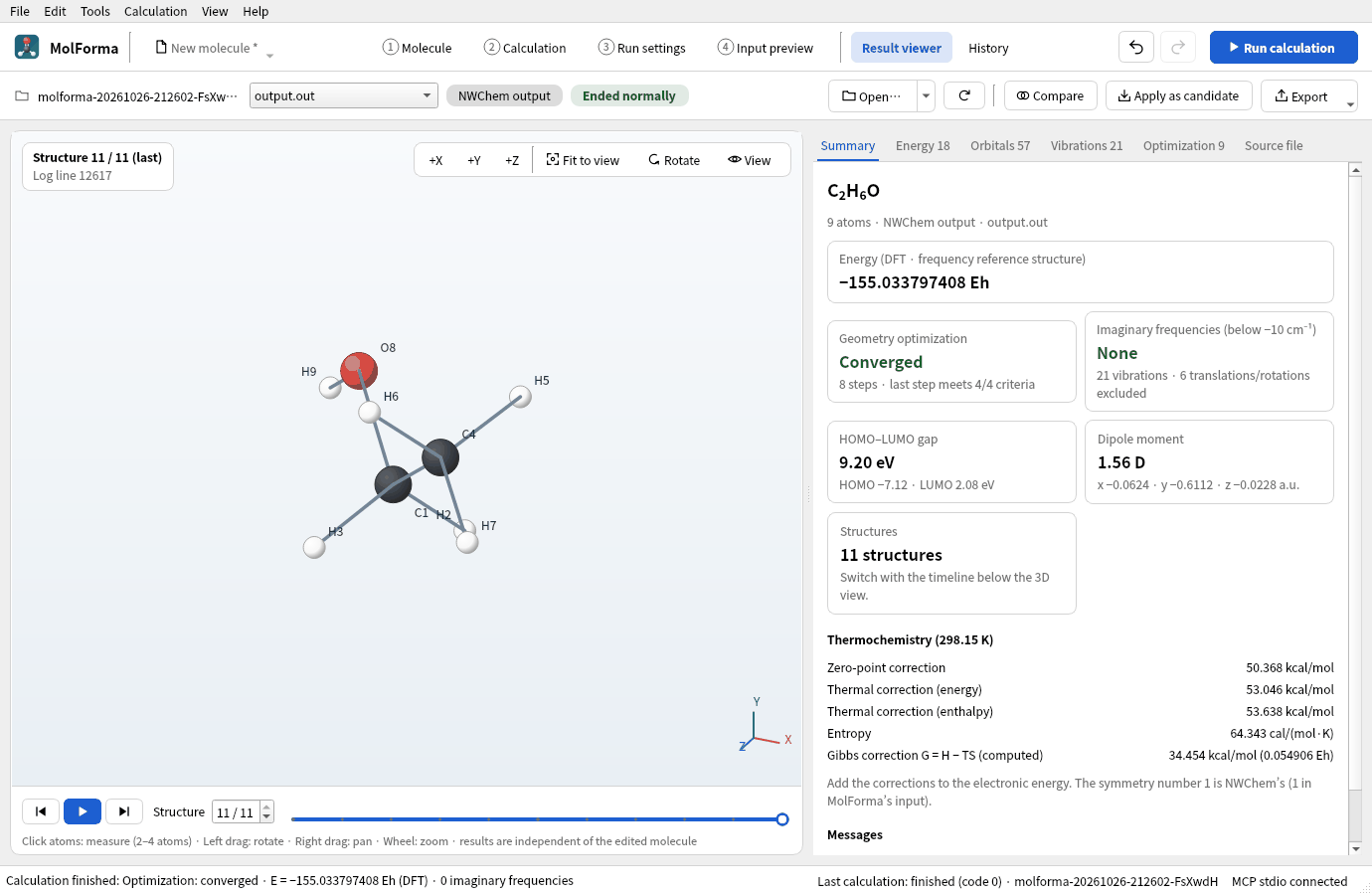
Figure 10 “Summary” of the “Result viewer”: the energy, the convergence of the optimization, imaginary frequencies, the HOMO–LUMO gap, the dipole moment and thermochemistry.
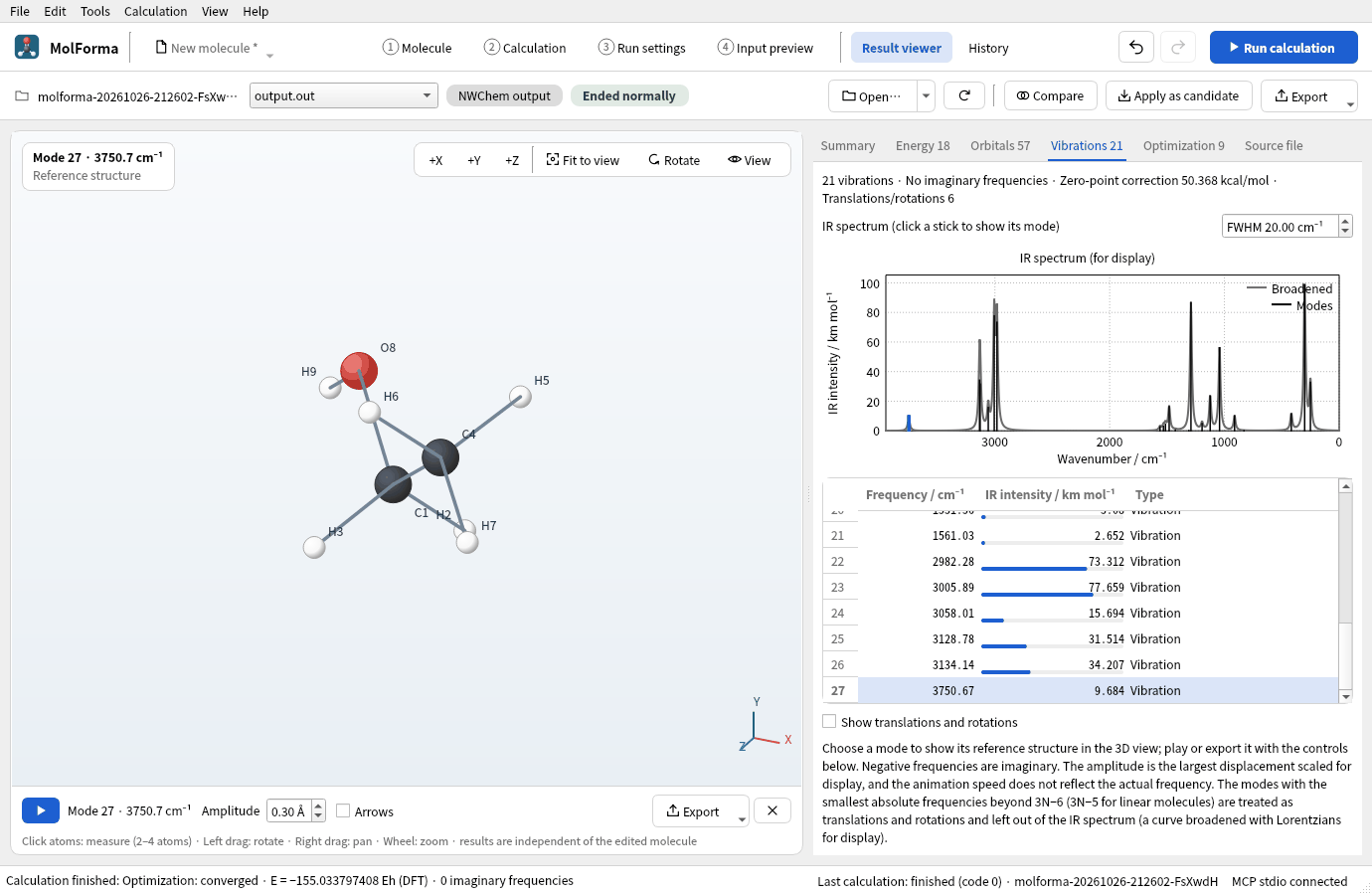
Figure 11 The O–H stretch (3751 cm⁻¹) chosen in the “Vibrations” tab. The play button under the 3D view animates it.
Results
| Item | Value |
|---|---|
| Energy of the calculation | −155.033797408 Eh (reference structure of the frequencies) |
| Optimization | Converged in 8 steps |
| Imaginary frequencies | None (21 vibrations; 6 translations and rotations excluded) |
| Bond lengths | C–O 1.425 Å, C–C 1.520 Å, O–H 0.969 Å |
| O–H stretch | 3751 cm⁻¹ (unscaled) |
| Dipole moment | 1.56 D |
| HOMO–LUMO gap | 9.20 eV |
| Zero-point / Gibbs correction (298.15 K) | 50.37 / 34.45 kcal/mol |
Ethanol has conformers with the OH turned differently (anti and gauche). Changing the H–O–C–C dihedral and optimizing again from another start is a good exercise.
Variations: deletion, bond types and insertion
Acetaldehyde (delete two hydrogens, make a double bond)
-
From ethanol of step 2 (before cleanup is fine), choose “Delete” (X) in the left column and click the O–H hydrogen. Deletion is a candidate; press “Confirm changes”. Deleting only a hydrogen adds no capping hydrogen, even with “Cap with hydrogens after deleting” on.
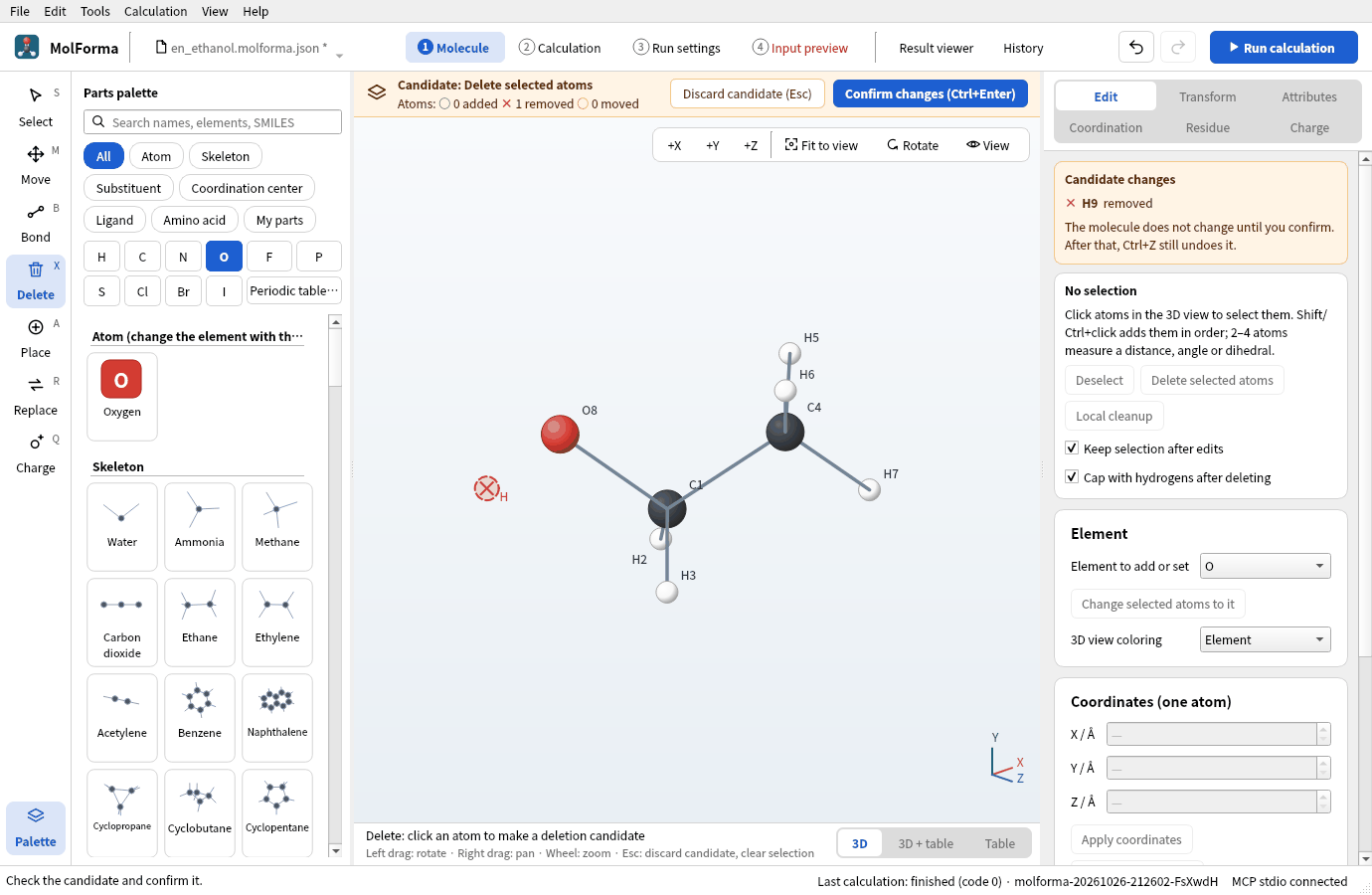
Figure 12 Clicking a hydrogen with the “Delete” tool makes a candidate with the atom to remove crossed out.
- Delete one hydrogen of C1 the same way and confirm. You get C2H4O · 7 atoms.
- Choose the “Bond” (B) tool, set “Bond type” above the 3D view to “Double bond”, and click C1 and then O. The atoms are already bonded, so only the bond order changes (with the focus in the 3D view, choosing the two atoms and pressing “2” does the same).
-
Changing the order does not change the bond length; tidy it with “Clean up all”.
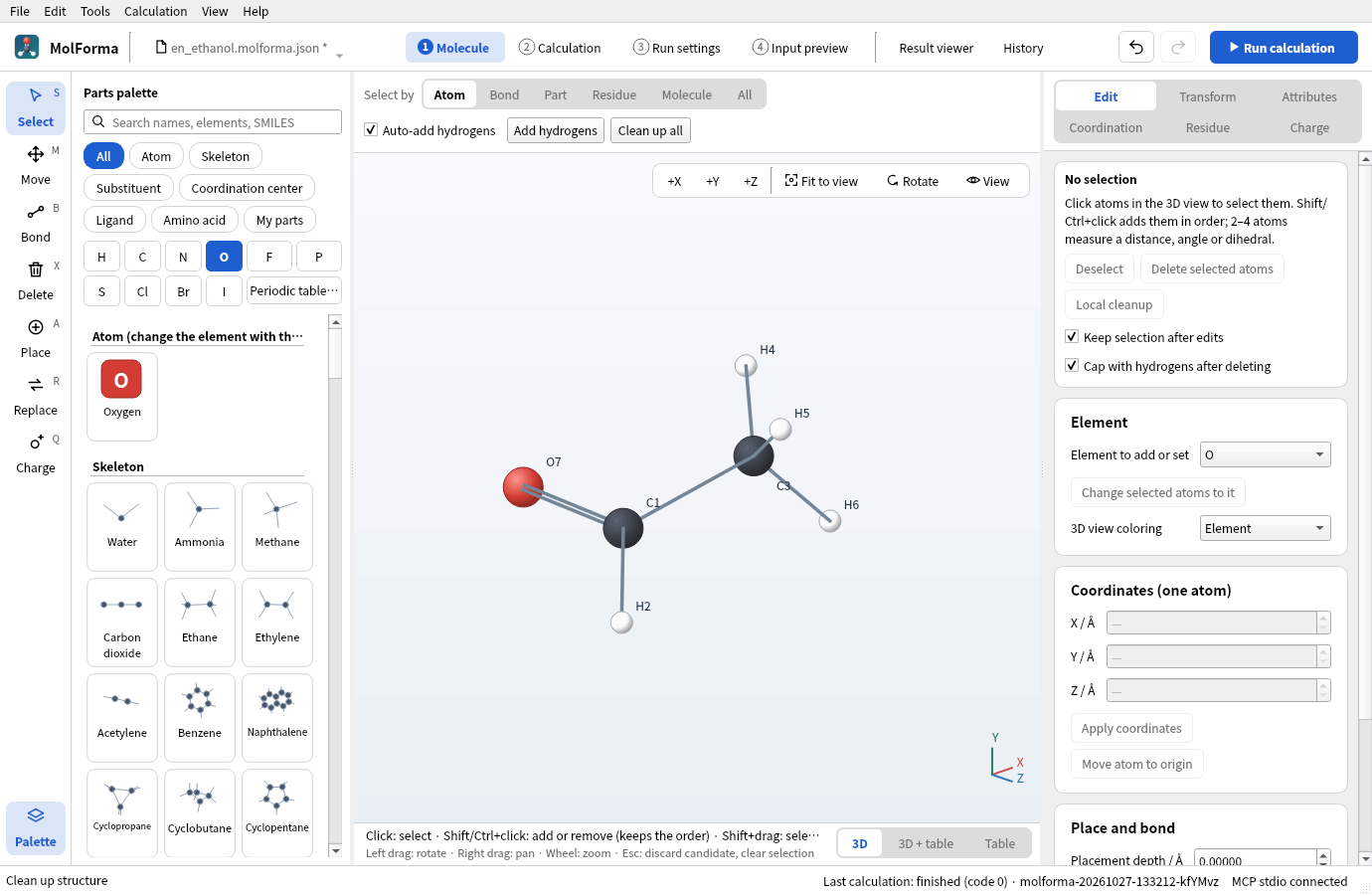
Figure 13 Acetaldehyde (C2H4O · 7 atoms) with the double bond, cleaned up.
Dimethyl ether (insert an atom into a bond)
- Build ethane (C2H6) with “File → New” and the first half of steps 1 and 2. Set “Bond type” back to “Single bond”.
-
Press “O” and click on the C–C bond line. Oxygen goes between the two carbons: C2H6O · 9 atoms.
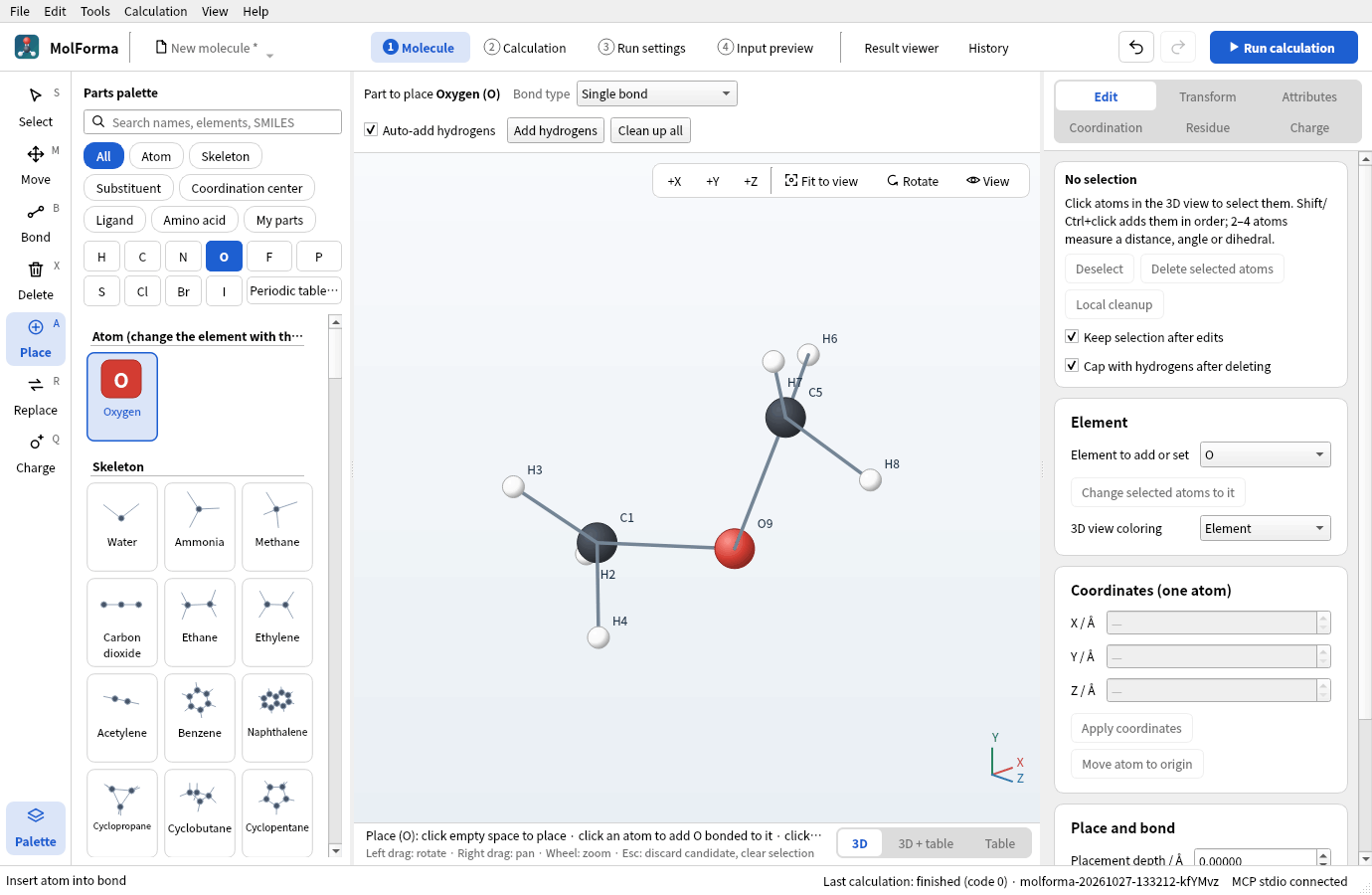
Figure 14 Clicking on the C–C bond puts oxygen O9 between the two carbons (before cleanup).
- The inserted atom goes where covalent radii and a tetrahedral angle put it (C–O 1.42 Å, C–O–C 109.5°), and the smaller fragment moves outward. “Clean up all” brings C–O–C to about 111.5°. In a ring bond, nothing else moves and the atom sits off the bond line; widen the ring with “Clean up all”.
Troubleshooting
- No hydrogens are added“Auto-add hydrogens” above the 3D view is off. Choose atoms (or nothing, for all) and press “Add hydrogens” to fill in missing hydrogens.
- A new atom appeared instead of replacing a hydrogenClicking just beside a hydrogen hits empty space and places a separate molecule. Undo with Ctrl+Z and click on the hydrogen.
- You get ethylene or acetylene“Bond type” is still double or triple; placed atoms are bonded with it too.
- The “4 Input preview” tab name is redThe input cannot be generated; the tooltip or the checks of “2 Calculation” give the reason. Right after deleting a hydrogen the electron count is odd and does not match multiplicity 1.
- Cleanup says no force-field parameters are availableBond orders or formal charges are chemically odd. Check valences with “Tools → Check structure…”.
See also: tools, palette, selection, deletion and candidates in “1 Molecule”: layout, tools and selection, recipe 5 Chains and conformers, recipe 15 Isotopes.