 MolForma
Features and operation (by screen and tab)
MolForma is a desktop application for building molecules, editing coordinates, preparing calculation input, running calculations and viewing results for NWChem. Molecular coordinates are kept as double-precision values in Å, and atoms are referenced by persistent IDs. It runs and stops calculations locally, shows their logs and results, lists the history of saved calculations, shows their input and logs, and reuses their molecules and settings. It can also be driven from MCP clients (MCP server overview).
The features are described on one page per screen or tab. Open the page of the screen you want from the “List of pages” below. Step-by-step walkthroughs that build a molecule, calculate it and check the results topic by topic are in the “Recipes”.
Getting started: the basic workflow
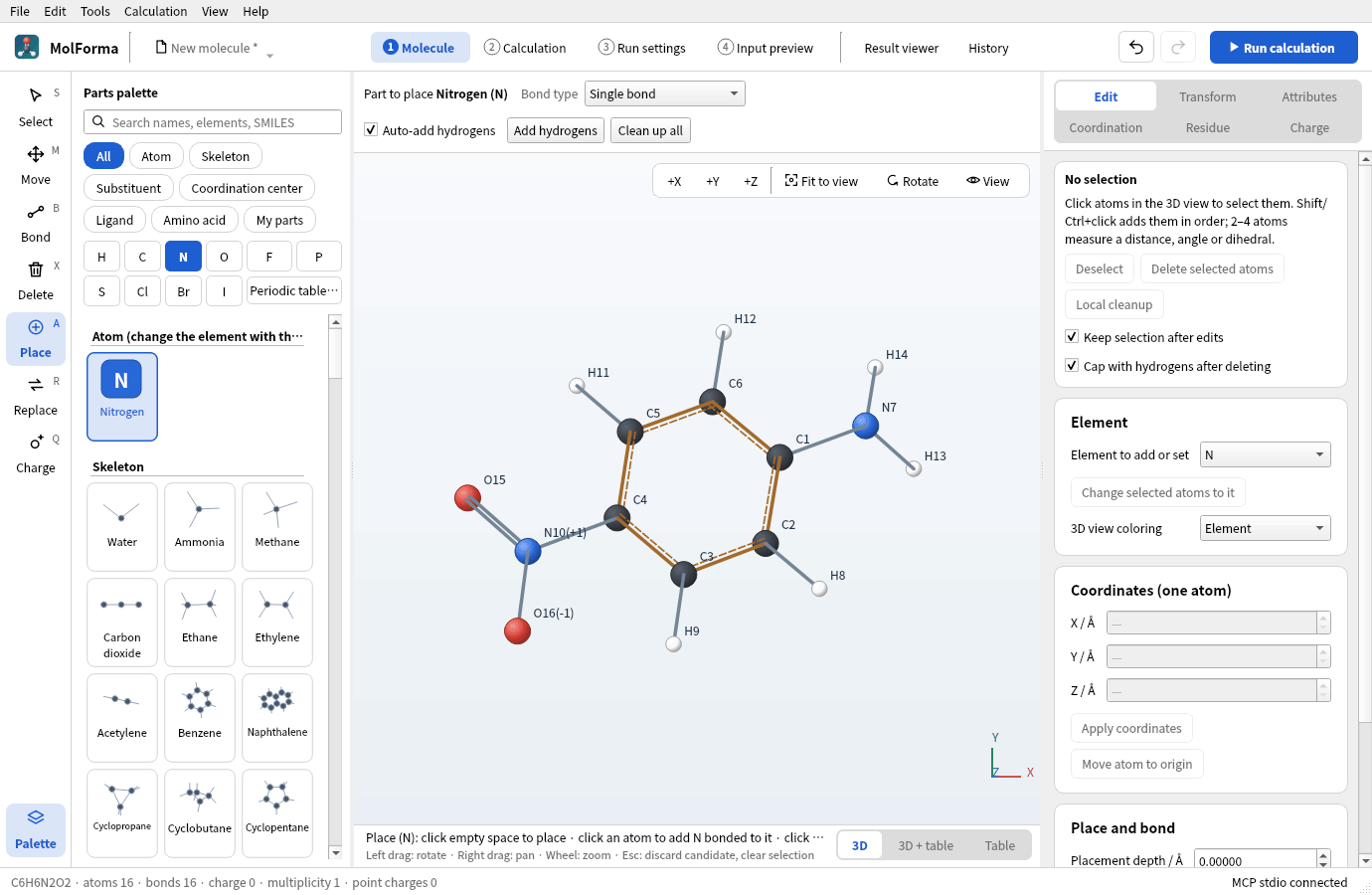
- Build a molecule (“1 Molecule”)Use “From SMILES” or “Open” (for a structure file) in the file-name menu at the left of the header (or in the “File” menu), or use the parts palette. Common elements have buttons in the palette (H, C, N, O, F, P, S, Cl, Br, I); choose any other element with “Periodic table…”. Clicking an atom or part in the palette switches to the “Place” tool, and you place it by clicking in the 3D view. When you choose a tool in the column at the left edge (or with keys such as S, A, B), its settings appear above the 3D view and what a click does appears below it. Changes such as deletion, cleanup and ligands are shown as candidates: “Confirm changes” (Ctrl+Enter) applies them, Esc discards them and Ctrl+Z undoes them (“1 Molecule”: layout, tools and selection).
- Set up the calculation (“2 Calculation”)Choose the task, method, basis set, charge and multiplicity. Problems are listed on the right; those marked “→ Double-click to fix” can be fixed by double-clicking them. To see orbital shapes, turn on “Write MOLDEN file” in “Orbitals and output files”. Opening “Advanced settings” in a section lets you set items that go directly into the NWChem blocks (“2 Calculation”, Advanced settings and CUBE/MOLDEN output).
- Run the calculation“Run calculation” at the right of the header or “Calculation → Run calculation” (F5) starts NWChem (check the executable and other settings in “3 Run settings”). When the run ends, the result is loaded into the “Result viewer”, and the optimization convergence, energy and number of imaginary frequencies are shown in the run panel (“Run status and log”) and in the status bar (“3 Run settings”).
- View the results (“Result viewer”, “History”)Check the structure, energy, orbitals, vibrations and more in the tabs that have data. Open earlier calculations from “History” to reuse their molecules and settings (“Result viewer”, “History”).
Each page describes the features and their limitations. Keyboard operations are listed in “Help → Keyboard shortcuts”.
List of pages
| No. | Page | Screen | Contents |
|---|---|---|---|
| 1 | “1 Molecule”: layout, tools and selection | 1 Molecule | Window layout, tools and parts palette, selection, deletion, candidates, view and keys, atom palette and periodic table |
| 2 | Right-side pages of “1 Molecule” | 1 Molecule | The “Edit”, “Transform”, “Attributes”, “Coordination”, “Residue” and “Charge” pages and their NWChem support, structure tools (point group, Z-matrix, conformer search, structure check and comparison), worked examples |
| 3 | Coordinate table | 1 Molecule | Editing the table of coordinates and attributes, loading and exporting structure files, output as an NWChem geometry block |
| 4 | “2 Calculation” | 2 Calculation | Supported calculations (methods, basis sets, solvents, relativity), transition states, IRC, constraints and scans, properties and BSSE, importing input, diagnostics and changes |
| 5 | Advanced settings and CUBE/MOLDEN output | 2 Calculation | “Advanced settings” of each section (56 items), scope and precedence, writing CUBE and MOLDEN files |
| 6 | “3 Run settings” | 3 Run settings | Launch settings for NWChem and MPI, pre-run checks, the run panel (run status and log), saving, running and stopping jobs |
| 7 | “4 Input preview” | 4 Input preview | Showing the generated NWChem input, its structure and where each part is set, input for export and at run time, copying and exporting |
| 8 | “Result viewer” | Result viewer | Result files it reads; overview, optimization, vibrations, excited states, paths and properties; molecular orbitals from MOLDEN |
| 9 | “History” | History | The list of saved and run jobs, comparing ΔE, reusing molecules and settings, repairing records |
| 10 | 3D rendering | 1 Molecule, Result viewer | VTK and QPainter rendering, display styles, measurement and hydrogen-bond display, rendering performance |
| 11 | Whole application | All | Shared parts of the window, status bar, interface language, autosave and recovery, the guide and manual, tests |
| 12 | MCP server overview | — | Operation from AI clients, the tools it exposes, safety restrictions (details in “MCP server”) |
Implemented features
| Category | Operations |
|---|---|
| File | MolForma projects (.molforma.json), loading and saving XYZ (choosing a frame of multi-frame files) / MOL / SDF / Mol2 / CML / PDB, importing NWChem input (.nw, including calculation settings) and Gaussian input (.gjf / .com), exporting Gaussian input, copying and pasting XYZ, SMILES → 3D, adding fragments from SMILES and structure files, recent files, drag and drop, autosave and recovery after an abnormal exit |
| Palette | The 118 elements H–Og chosen from a periodic table, 19 skeletons, 32 substituents, 21 ligands, 28 amino-acid states, 25 coordination-center elements (other elements are chosen as centers with the element buttons, the periodic table or the search; colored element-symbol icons, names, atomic numbers, rows at least 48 px tall like the other parts, search by symbol, Japanese or English name, or atomic number), lists with molecule thumbnails (names, attachment points, HiDPI support), search, saving, loading and unregistering My parts |
| 3D view | Rotate, pan, zoom, +X/+Y/+Z, 3-axis rotation sliders, numbers, hydrogens, markers for hidden H, coordination arrows, fixed and isotope marks, coordination sites, end-extension handles, PNG, display styles (ball and stick, stick, space-filling, wireframe), temporarily hiding atoms, persistent measurements, hydrogen-bond display |
| Selection | Atoms, bonds, parts, residues, connected molecules, all; by number and range; rectangle; context menu |
| Editing | Adding atoms, inserting into a bond, changing the element, attaching substituents, replacing a whole part (one attachment point), single, double, triple, aromatic and coordination bonds, coordinate table, applying coordinates, translation, duplication, deletion, adding hydrogens |
| Dimensions and stereo | Measuring and setting distances, angles and IUPAC dihedrals (for bonded atoms one side moves; for atoms in separate molecules the whole molecule of the later atom moves), selecting one side of a bond, rotation, mirroring, swapping substituents at stereocenters, switching E/Z geometry, center of mass and principal axes of inertia, orienting by atom order, assigning and recording R/S and E/Z, point-group detection and symmetrization, viewing and editing the Z-matrix, conformer search, comparing and superposing structures (RMSD) |
| Atom attributes | Formal charge, unpaired electrons, isotope/mass, ghost, fixed, sorting by element, by residue or selection first |
| Coordination | 12 geometries, placing centers, monodentate and bidentate ligands, choosing sites, exchanging and moving ligands, geometry, distance and oxidation state, per-site directions, swapping sites of monodentate ligands, adjusting donor H directions |
| Peptides | 1- and 3-letter sequences, L/D, side-chain states, charged/neutral termini, ACE/NME, adding at the N/C terminus, repeated adding, replacing and deleting residues, splitting and rejoining chains, phi/psi/omega/chi, sequence links, manual registration, residue recognition from the bond graph, completing missing side chains |
| Point charges | Adding, updating, deleting, converting selected water to TIP3P point charges (candidate), switching their output to NWChem input, saving to a file in x y z q (Å) format |
| Calculation preparation | Total charge and multiplicity (“2 Calculation”), fixing atoms, ghost atoms, structure checks, atom-mapping CSV |
| Edit history | Confirming and discarding candidates, Undo/Redo, rollback of failed edits, unsaved indicator, handling candidates before saving |
| Cleanup | Open Babel MMFF94 / UFF, whole and local cleanup, 3D regeneration, keeping fixed atoms, cancelling |
Limitations and unsupported features
The main limitations and unsupported features are:
- PDB repair: “Residue → PDB diagnosis and repair…” diagnoses each residue, makes candidates that complete missing atoms and recognizes residues again; you check and confirm them in the main window. Completion covers residues with the backbone N/CA/C and a standard amino-acid template; unknown residues and missing backbones are not repaired automatically. The MODEL/ALTLOC choice, atom names and chain information are kept.
- Fragment assignment (FMO, counterpoise, SAPT0) and its validation. As it cannot be converted to NWChem input, there is no UI to create or edit it (“1 Molecule” right-hand pages and NWChem). Counterpoise correction can be calculated with the BSSE correction of “2 Calculation” (one monomer per bonded molecule). FMO and SAPT0 are not supported.
- Migration of v1 projects.
Assigning and recording R/S and E/Z and recognizing residues from the bond graph use the optional RDKit C++ library. It is enabled in this environment. Where it is not found, the corresponding buttons are disabled.
The 3D view supports C++ VTK/OpenGL and a QPainter fallback renderer. Cleanup and SMILES generation use Open Babel. Force-field cleanup of metals, coordination bonds and ghosts is refused. Main-group elements such as Br, I, Se and Te can be cleaned up if MMFF94 or UFF has parameters for them. Attaching My parts supports one attachment point, and ligands 1 or 2 donor atoms. My parts can also be saved as “Skeleton (no attachment point, placed in empty space)” and are then placed by clicking empty space, like the built-in skeletons.
“File → Add fragment from SMILES…” and “Add fragment from file…” (XYZ, MOL, SDF, Mol2, CML, PDB, NWChem and Gaussian input) keep the current molecule and add another molecule 3 Å away on the +X side as a candidate (for dimers, solvation, arrangements before complex formation, etc.). Atoms, bonds, residues, parts and coordination centers are taken over; the point charges and calculation settings of the fragment are not. If the total charge matched the sum of formal charges, it is updated to the sum after adding. Adjust the position with “Translate” or by setting dimensions between unbonded atoms. For multi-frame XYZ, you choose the frame to add.
Unknown fields of a project are kept as they are when saving and are not used in NWChem input.