View and edit YaneuraOu-format opening books
Screenshots were captured on Linux with the English interface.
Open a book file in the Joseki window and see the book moves for the displayed position
Choose View → Joseki to show the Joseki window. At first it sits in the tabs at the bottom of the main window. If the table is cramped, enlarge the panel or turn it into a separate window (see the Docks guide).
Click Open and choose a YaneuraOu-format (#YANEURAOU-DB2016) book file (.db), such as the standard_book.db bundled with YaneuraOu. New creates an empty book, and History opens a recently used file. With Auto Load checked, the last file is loaded the next time the window is shown.
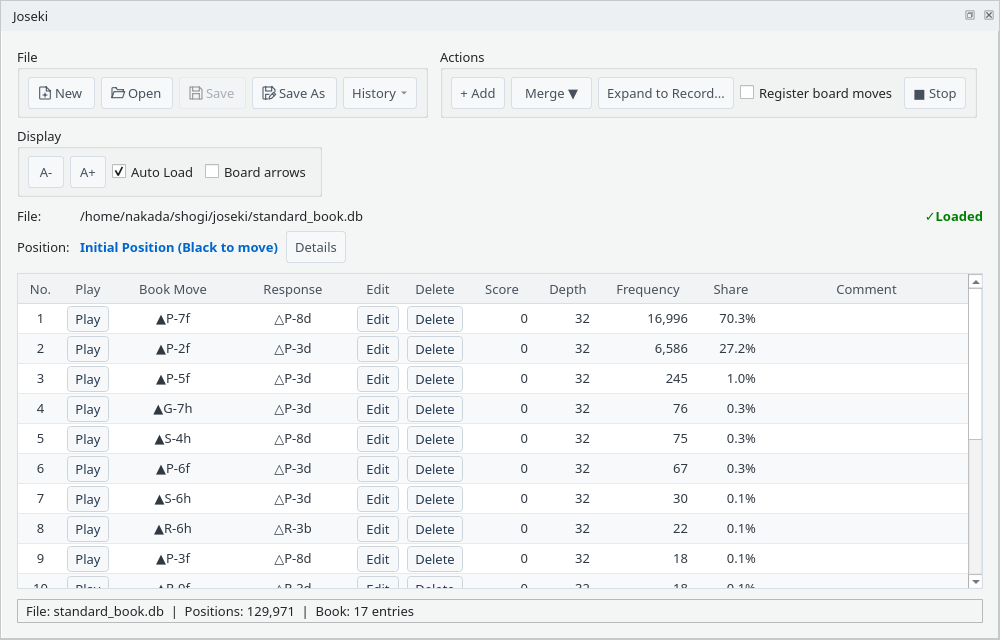
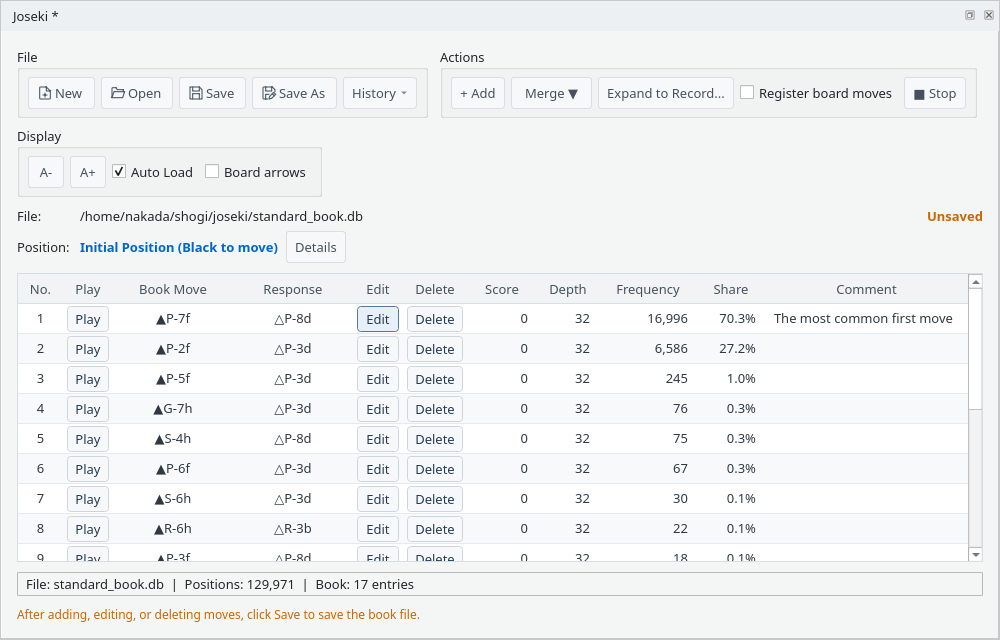
Joseki window: the initial position with standard_book.db open
The book moves registered for the displayed position are listed in the order they appear in the file.
When you select a move in the game record or a game advances, the table switches to the book moves of that position. Move numbers are ignored, so the same position always shows the same book moves. If the book file registers the same position separately under different move numbers, the entry for the displayed move number (or else the first one in the file) is shown and edited. Saving keeps each of these entries.
Details shows the SFEN of the position and of the book entry. ■ Stop pauses the book display and ▶ Resume restarts it. While the Joseki window is behind another tab it is not updated; when it comes to the front again it shows the book moves of the displayed position. The bottom line shows the file name, the number of positions and the number of book moves for this position. While a file is being loaded or saved, it also shows Loading... or Saving... (a large book file can take a few seconds to load). A hint is shown inside the table when no book file is open or the position has no book moves.
Check View → Show book moves on board to draw the book moves of the displayed position as green arrows on the board. Board arrows in the Joseki window toggles the same setting.
The first five moves of the table are numbered in table order, and moves with a higher frequency are drawn darker. Arrows are shown only while a book file is open in the Joseki window; they are hidden while ■ Stop has paused the display and on the engine's turn during a game. Where they overlap, the engine's arrows from consideration or games are drawn on top.
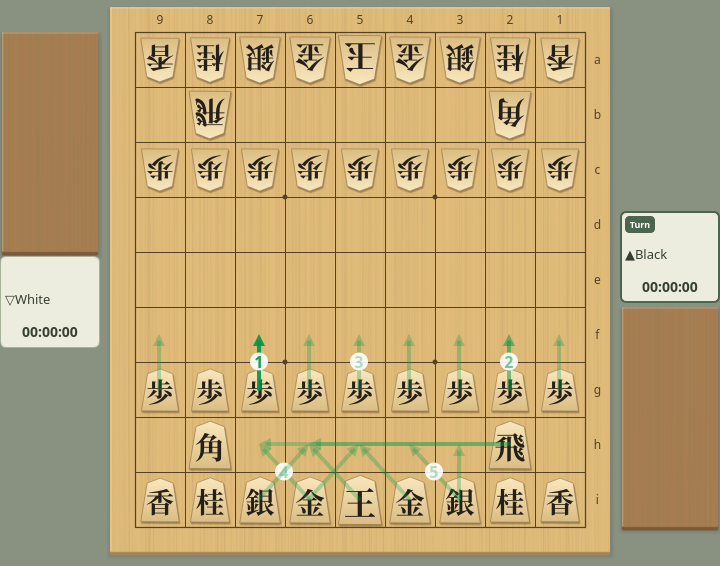
Book moves on the board: the book moves of the initial position (numbered in table order)
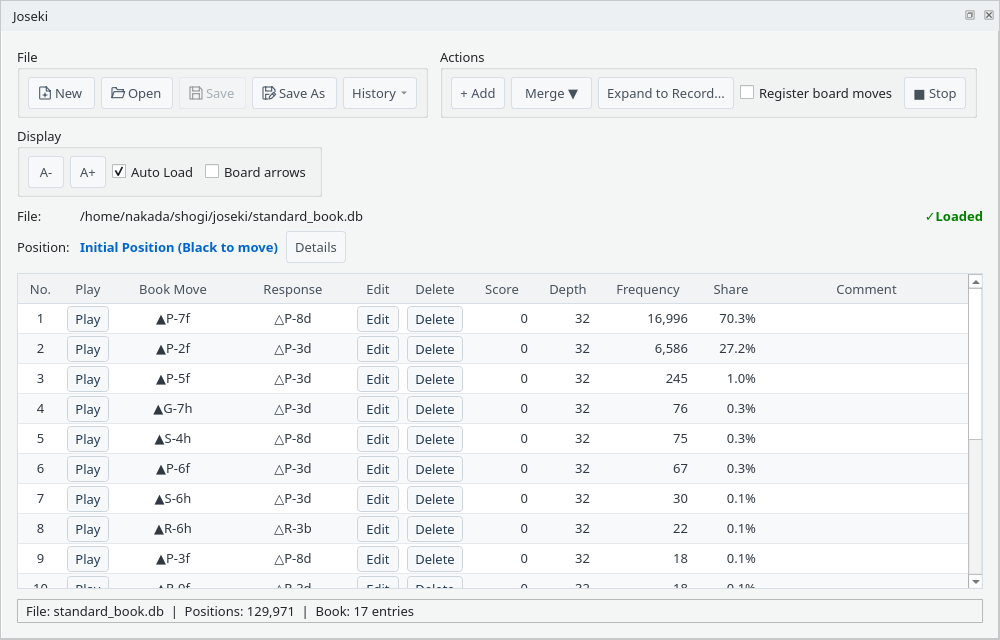
Play book moves on your own turn during a game, or at any time when no game is in progress. Engines in a game can also use the book
During a game, buttons appear in the Play column on your turn. Click one, or double-click the row, to play that book move (promotion follows the book). The move is recorded in the game record just like a move made on the board.
On the engine's turn and in engine-versus-engine games, the Play column is empty and book moves cannot be played. When no game is in progress, Play records the move as the next move after the one shown (a different move becomes a new variation; see “Add Variations by Moving Pieces” in the Branch Tree guide).
During a game: Play buttons on your turn play the book move
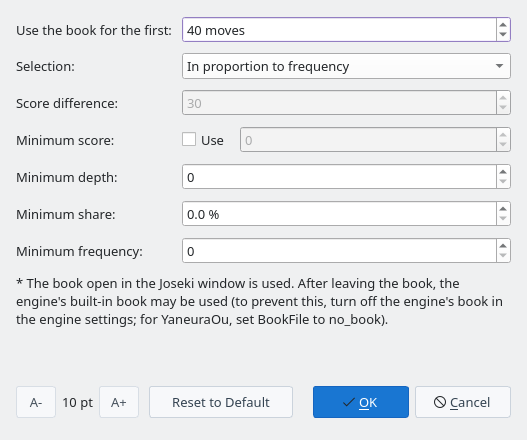
When an engine is chosen as a player in the game dialog, Use book and Conditions… appear. With Use book checked, on that engine's turn the move is played without letting the engine think, if the book open in the Joseki window has a move that meets the conditions. The move is played after at least one second. Once out of the book, the engine thinks and plays as usual.
Use book cannot be checked while no book file is open in the Joseki window. The book as it was when the game started is used, so editing the book or opening another file during the game does not affect that game. When a book move is played, the engine information shows it under Searching, like “△P-8d (book 39.9%)” (the percentage is the share). No point is added to the evaluation graph.
Game dialog: Use book and Conditions… for an engine player
Conditions… sets the conditions for using the book. They mean the same as YaneuraOu's book options.
Book conditions
Add, edit and delete book moves, then save the book file
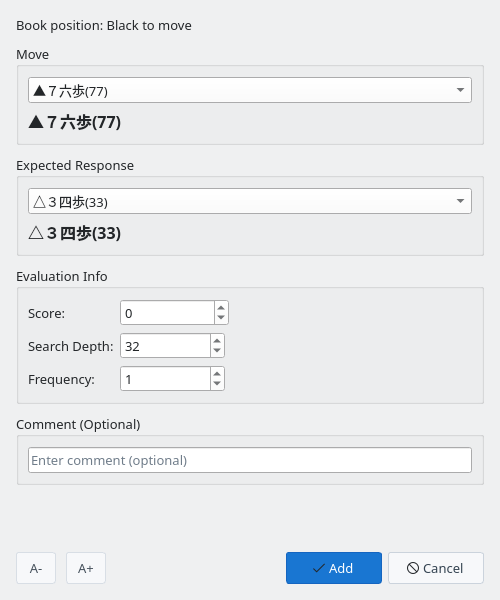
+ Add adds a book move to the displayed position. Choose the move from a list of the legal moves of the position, written in game-record notation (moves that cannot be played are not listed). The response is chosen from the legal moves of the position after that move, and None can be chosen.
Add stays disabled until a move is chosen. If the move is already registered, you are asked whether to overwrite it.
Add Book Move: choose the move and the response from the legal moves of the position
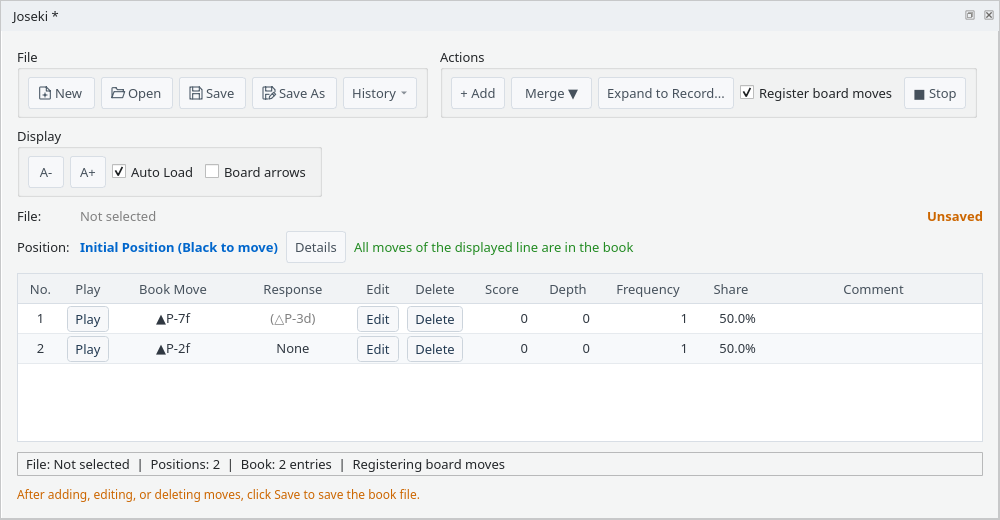
With Register board moves checked, moves played on the board and moves played in games (by people and engines) are registered as book moves of the position before the move. A new move is registered with no response, score 0, depth 0 and frequency 1; a move already in the book is not changed. Take a move back and play another one to add more book moves to that position.
While it is on, the bottom line shows Registering board moves. Pieces moved while editing a position are not registered. Playing games with it on turns the lines that were played into book moves (a move already in the book keeps its frequency). It turns off when the application is restarted. Save writes the registered moves to the book file.
Register board moves: two moves played, then back to the start position and another first move played
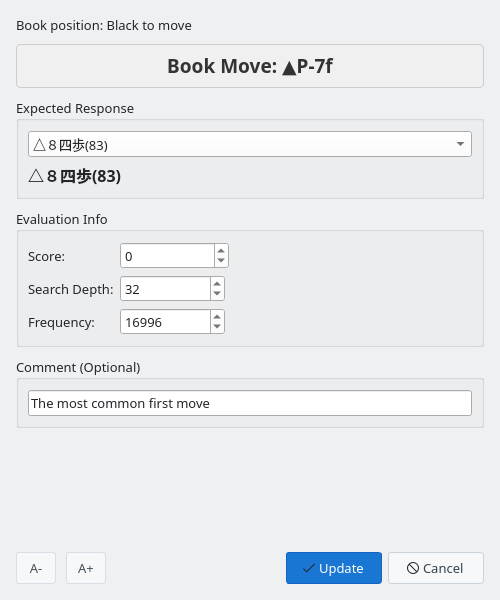
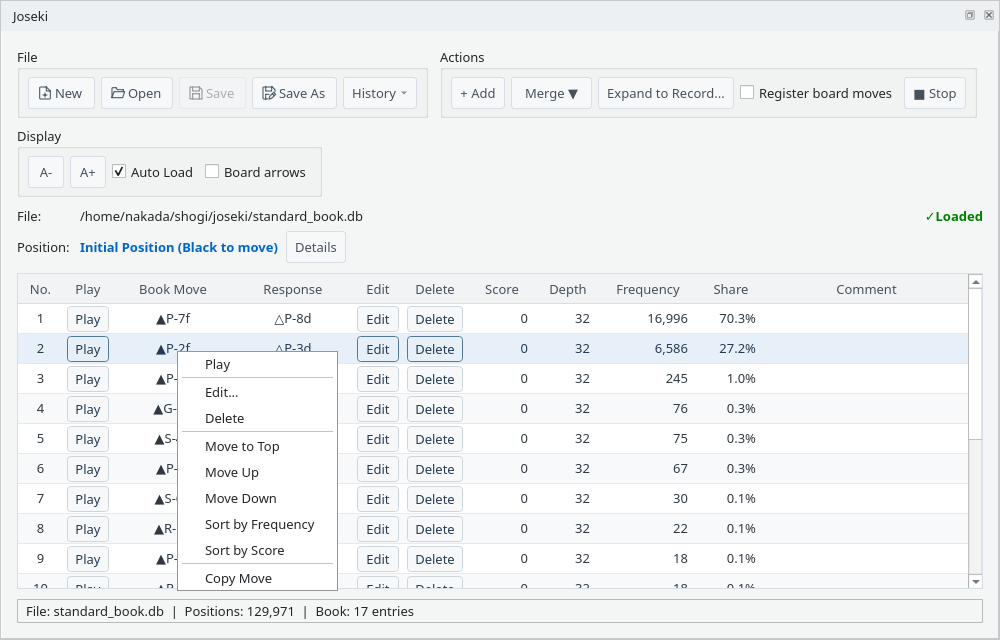
Edit changes the response, score, search depth, frequency and comment (the move itself cannot be changed; the response is chosen from the legal moves of the position after the book move). Right-click a row for a menu with Play, Edit, Delete and copying the move.
After a change, Unsaved and a reminder to save appear.
Edit Book Move: change the score, search depth, frequency and comment
After editing: the comment is shown with Unsaved and a reminder to save
Right-click a row and choose Move to Top, Move Up or Move Down to change the position of that book move. Sort by Frequency and Sort by Score sort the book moves of the displayed position from the highest down (on a tie, frequency is sorted by score and score by frequency).
The table order is the order written to the book file; the arrow numbers on the board and the first move in the table used when engines play from the book in games follow the same order. Save writes the new order to the book file.
Right-click the table to reorder the book moves
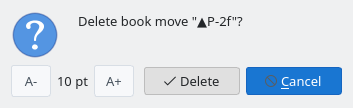
Delete asks for confirmation and removes the book move. Deleting the last book move of a position removes the position from the book as well.
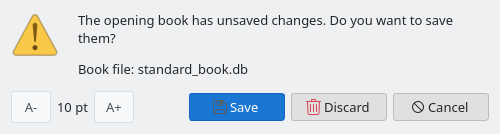
Save (overwrite) or Save As writes the changes to a book file. If you switch files with New, Open or History, or close the Joseki window or the application while changes are unsaved, you are asked whether to save them.
Delete confirmation
Prompt when there are unsaved changes
Register the moves of game records or another book file in the book
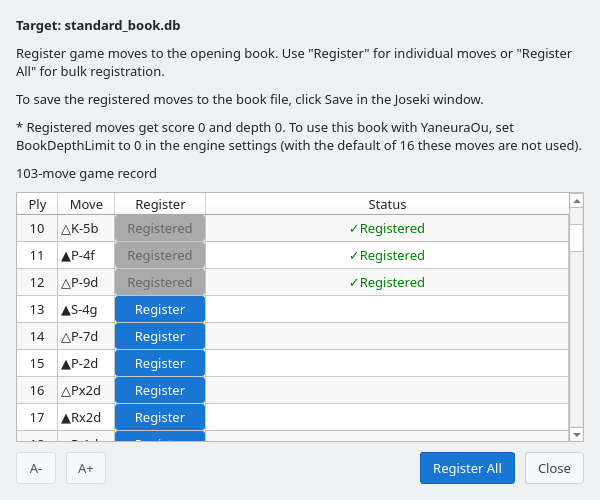
Choose Merge ▼ → From current game to list the moves of the line shown in the game record (the selected variation, if any), or From game file to list the main-line moves of a game record file (KIF, KI2, CSA, JKF, USI, USEN and so on). Moves of both sides are listed. Register adds one move, Register All adds them all.
Moves that are not in the book are registered with no response, score 0, depth 0 and frequency 1. Moves already in the open book are marked ✓Registered and cannot be registered again (to count how many games a move was played in, use From multiple game records...). Registering does not save the book file, so write it with Save.
Merge: register the moves of the game one by one or all at once
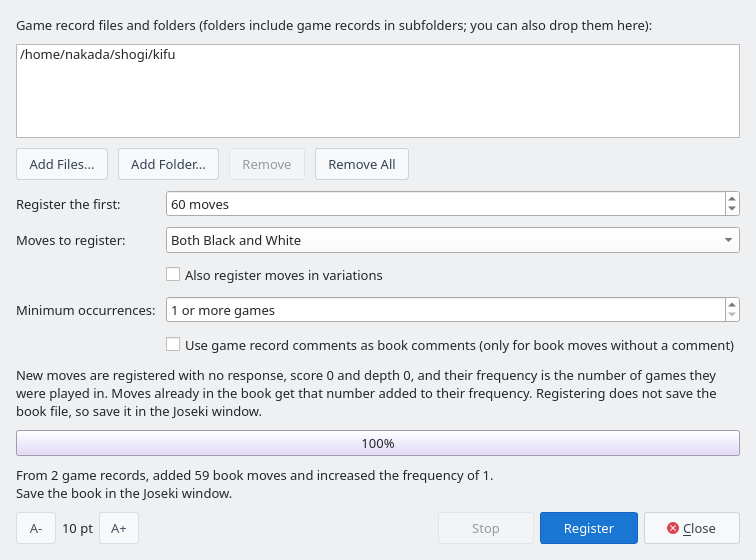
Merge ▼ → From multiple game records... registers many game record files and folders at once. List them with Add Files... and Add Folder..., or drop game record files and folders on the Joseki window or on this dialog (folders include the game records in their subfolders).
The conditions are:
Register starts reading the game records and shows the progress (Stop leaves the book unchanged). A new move is registered with no response, score 0 and depth 0, and its frequency is the number of games it was played in; a move already in the book gets that number added to its frequency. A position and move that appear several times in one game count once. Registering does not save the book file, so write it with Save.
Register from multiple game records: the game records in a folder are read and the result is shown
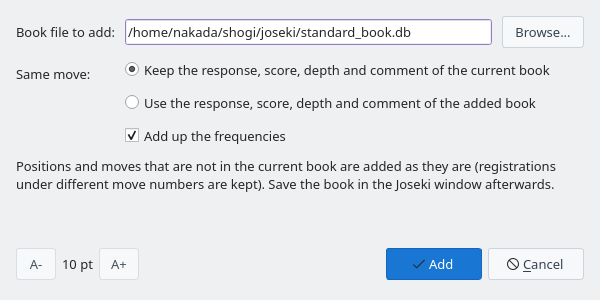
Merge ▼ → From book file... adds another book file (YaneuraOu format) to the current book. Positions and book moves that are not in the current book are added as they are, keeping registrations under different move numbers. For moves in both books, choose whether the response, score, depth and comment come from the current book or from the added book, and whether to add up the frequencies (otherwise the frequency of the chosen book is used).
Loading and adding run in the background, and Adding book file... is shown meanwhile. When it finishes, the numbers of added positions and book moves are shown. The book file that is open cannot be added to itself. Save writes the result to the book file.
Add a book file: choose how to treat moves that are in both books
Register the engine's PV from the thinking tables of consideration and games or from kifu analysis results
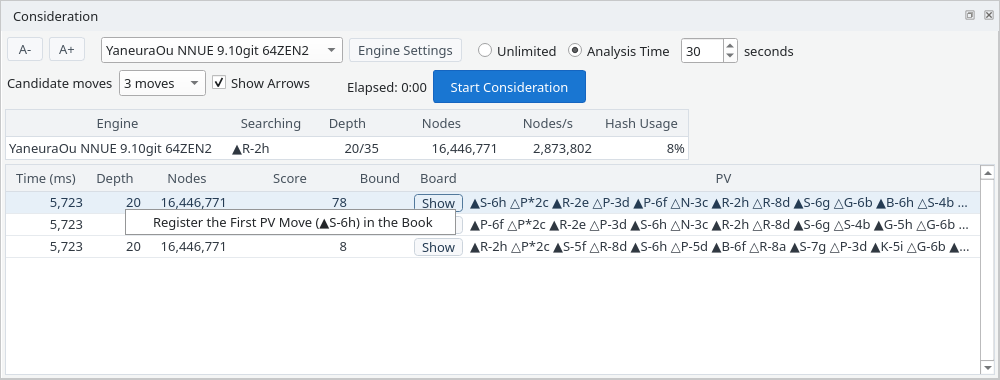
Right-click a row of the table in the Consideration tab, or in the Thinking tab during a game, and choose Register the First PV Move (…) in the Book to register the first move of that row's PV as a book move of the position the engine searched. The score and depth come from the row, and the second move of the PV becomes the expected response. A mate score is registered as ±(32000 − moves to mate), as YaneuraOu does.
A move already in the book only gets its score, depth and expected response updated (its frequency and comment are kept); a new move gets frequency 1. The item cannot be chosen before the Joseki window has loaded the previous book file (that is, before the Joseki window is shown for the first time) or while the book is being loaded or saved. Save writes the registered moves to the book file.
Right-click the Consideration table to register the first PV move in the book
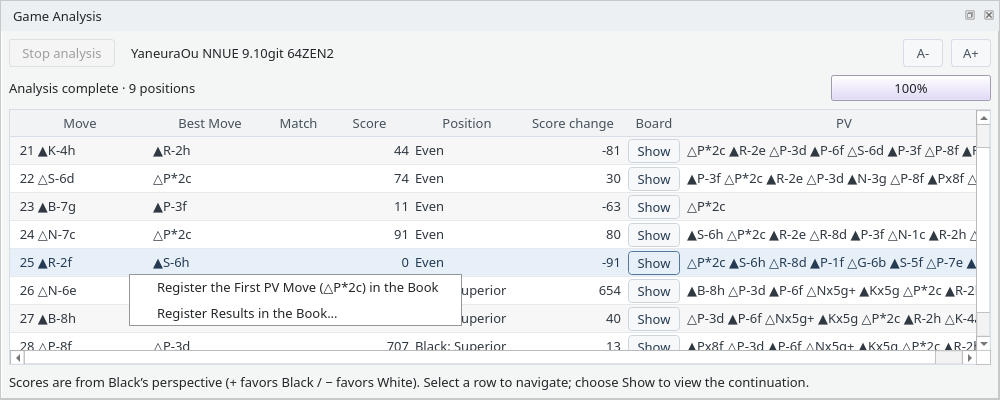
Right-click a row of the kifu analysis results and choose Register the First PV Move (…) in the Book to register the first PV move of that row's position (the position after the move). It works the same way as in the thinking table.
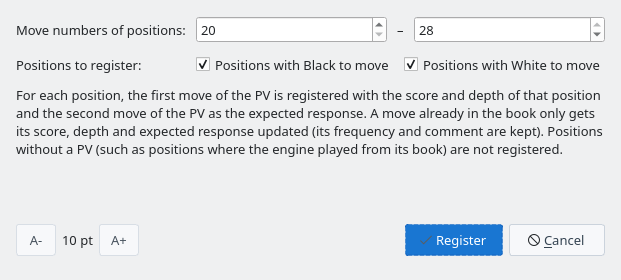
Register Results in the Book... registers the first PV moves of the analyzed positions at once. Choose the range of move numbers and whether to register positions with Black or White to move. Positions without a PV (such as positions where the engine played from its book) are not registered. When it finishes, the numbers of registered and updated moves are shown.
Right-click the kifu analysis results
Register Results in the Book: choose the range of move numbers and the side to move
Expand the book into variations of the game record, and see where the game record leaves the book
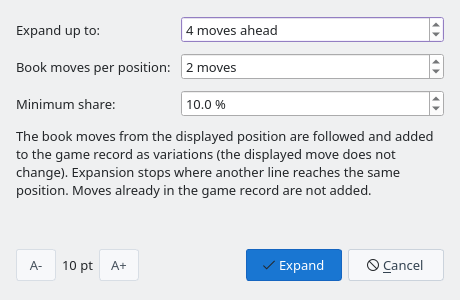
Expand to Record... follows the book moves from the displayed position and adds them to the game record as variations. Choose how many moves ahead to expand, how many book moves to expand from each position (from the top of the table), and the minimum share. Moves that cannot be played in the position are not added.
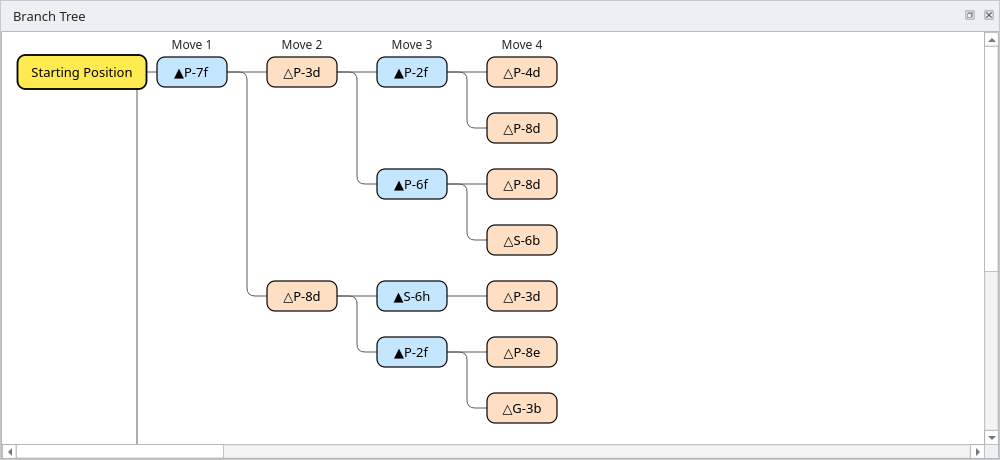
Where another line reaches the same position, expansion stops (that position is expanded along the line that reached it first). Moves already in the game record are not added, and the displayed move does not change. The added variations can be checked in the branch tree and the variation list, and saved with the game record. The book cannot be expanded during a game.
Expand to Record: choose how far to expand, the book moves per position and the minimum share
The branch tree after expanding: up to 4 moves ahead of the start position, 2 book moves per position (share of 10% or more)
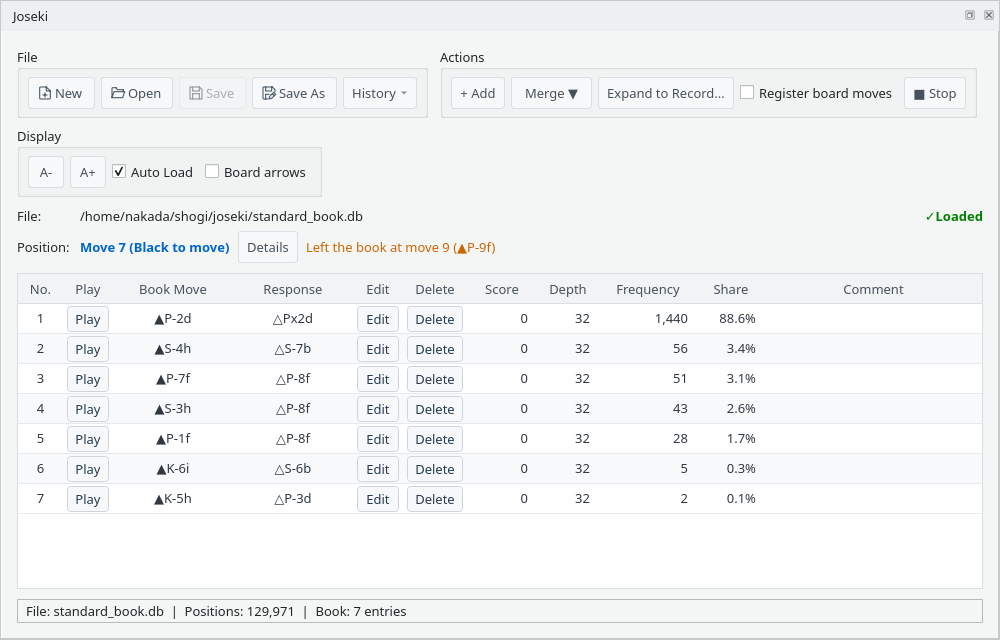
When the line shown in the game record leaves the book, Left the book at move N (…) appears to the right of the position line. Click it to go to that move. When every move of the line is in the book, All moves of the displayed line are in the book is shown.
A move counts as in the book when it is registered as a book move of the position before it (move numbers are ignored). Nothing is shown while the book display is stopped with ■ Stop.
Where the game leaves the book: click it to go to that move
Settings for letting YaneuraOu read the book you made
A book file made here can be used as YaneuraOu's book (BookFile and BookDir in the engine settings). With YaneuraOu's default settings, however, some moves are not used.