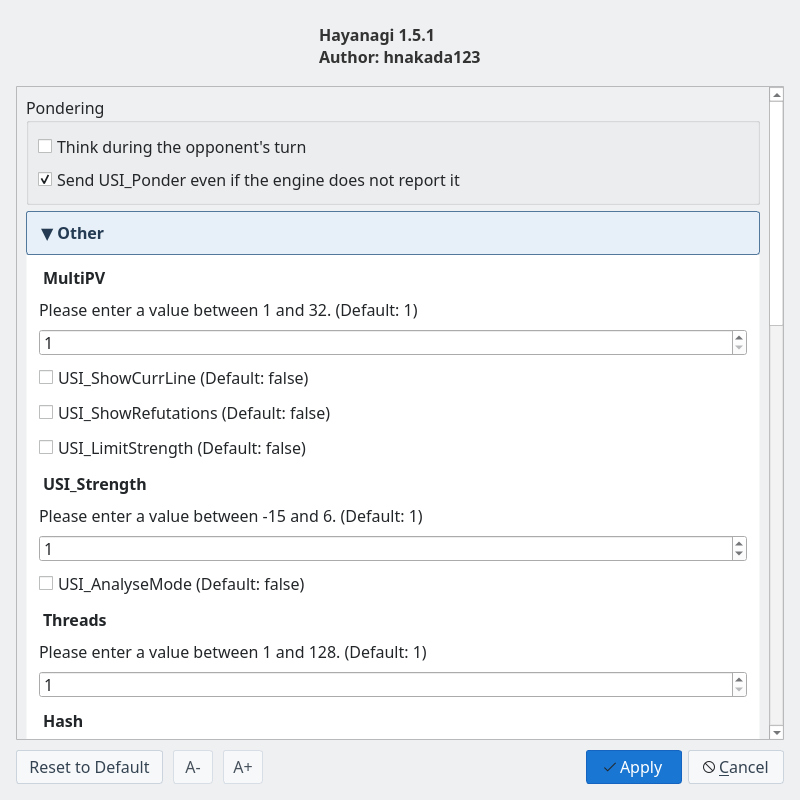
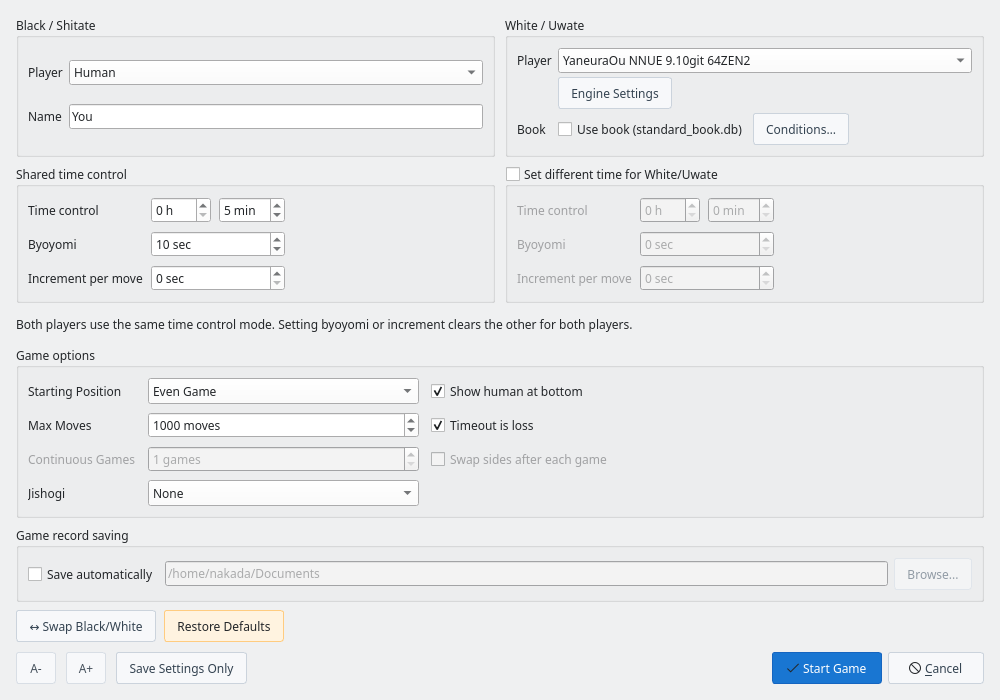
Once the game starts, the Thinking tab shows the engine's thinking information in real time.
Enable “Show arrows during games” in the Thinking tab to display the engine’s latest best candidate for the side to move as a solid red arrow. “Also show pondering side” adds a blue dashed arrow for the pondering engine’s reply and shows the assumed opponent move in the Thinking tab. This reply is conditional on that predicted move being played. Both display settings are saved and do not change the engine’s pondering setting. During consideration, arrows follow the settings in the Consideration tab.
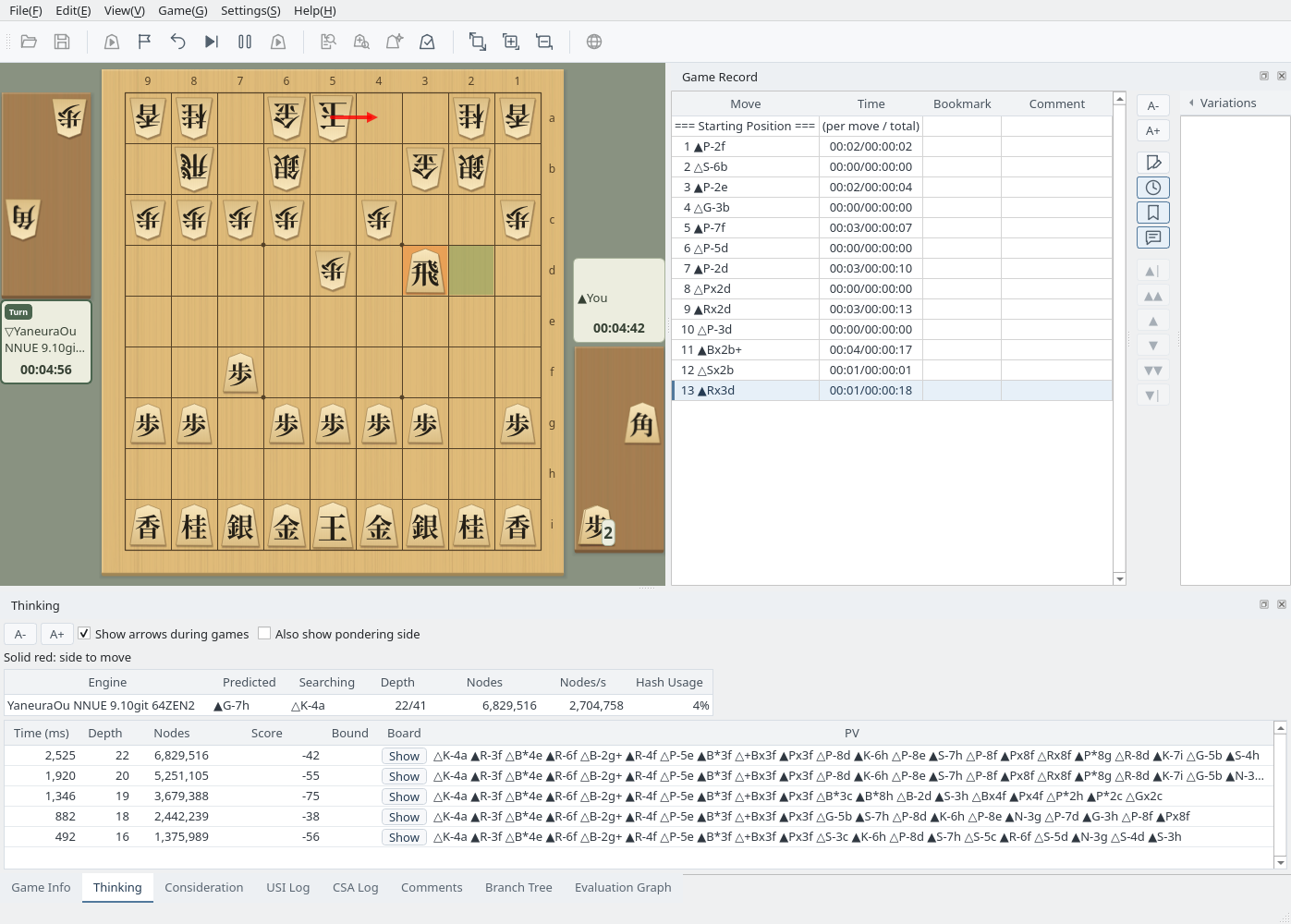
Thinking tab: live engine thinking information
The USI Communication Log tab shows messages exchanged between the GUI and engine using the USI protocol.
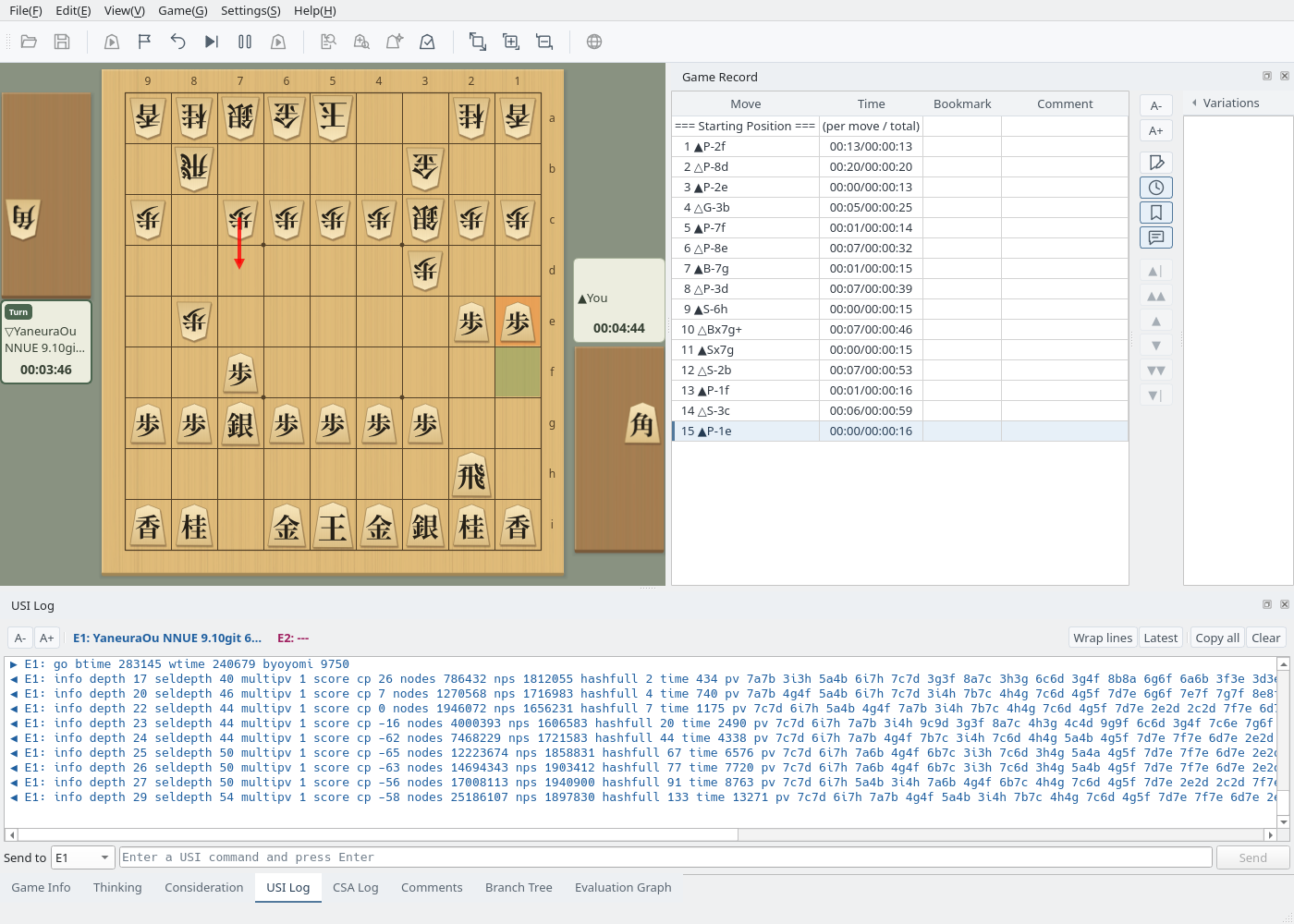
USI communication log: live protocol messages between the GUI and engine
The principal variation window lets you replay the engine's line on a shogi board.
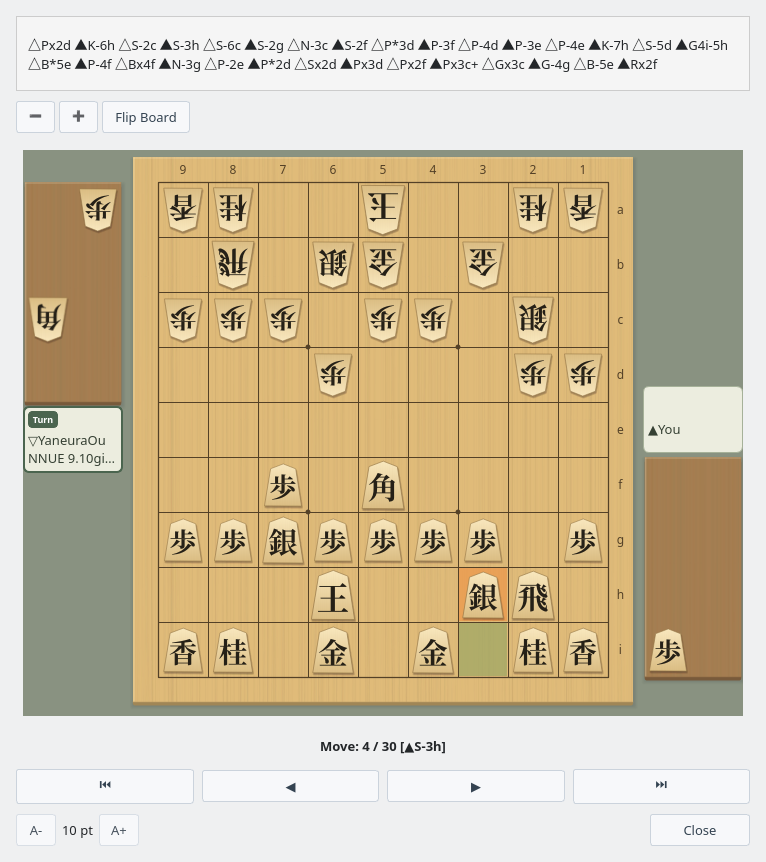
Principal variation display: visualize the engine's line on a board
The evaluation graph shows how the position changes over the game and updates in real time during play.
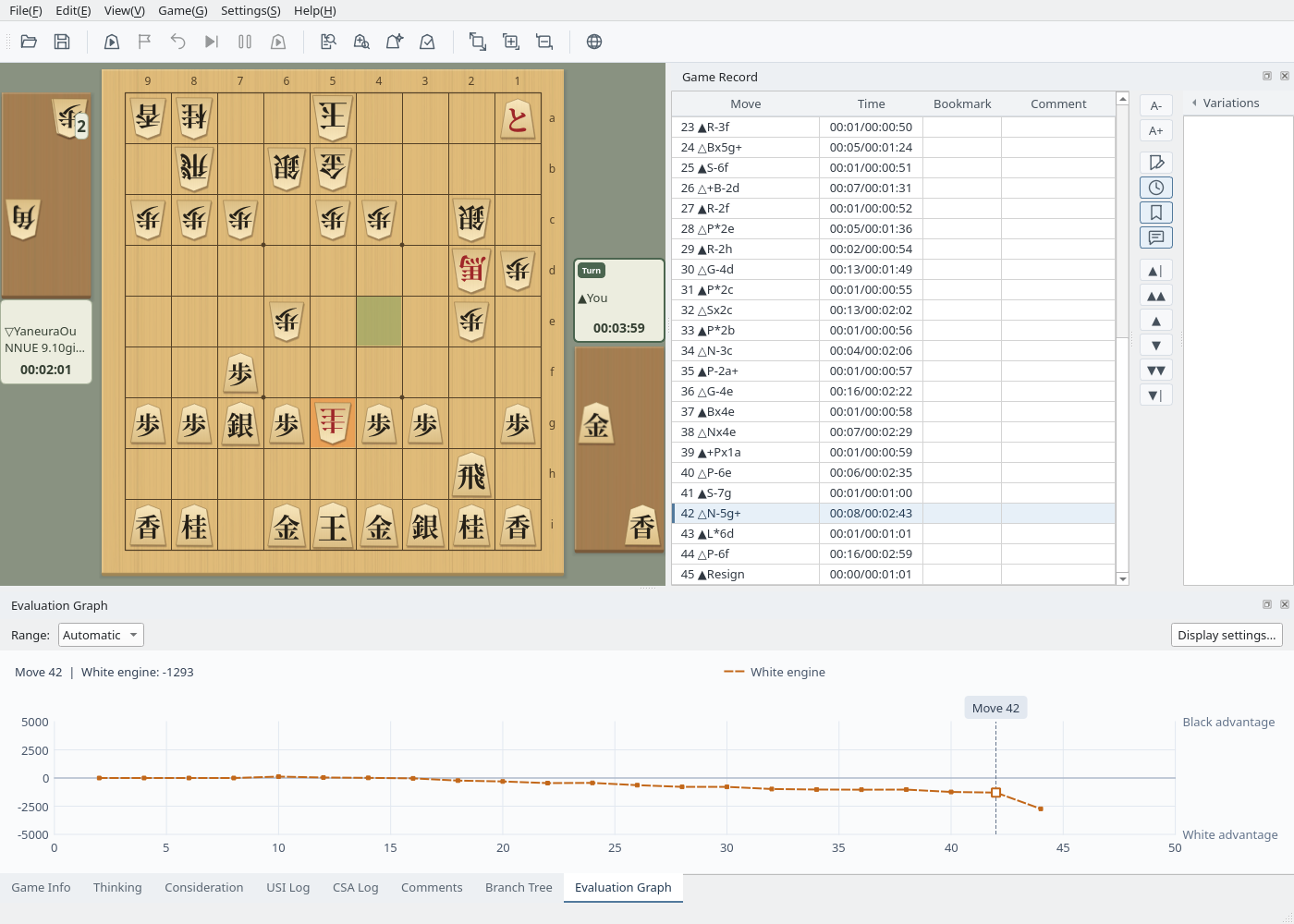
Evaluation graph: track the position in real time
The Game Info tab displays the game date, start time, Black and White players, handicap, time control, end time, and other details. In handicap games, the players are listed as Shitate and Uwate instead of Black and White (see Handicap Names).
Double-click a value to edit it. The change goes into the game record when you confirm the entry (Enter), and is written to the file when you save the record.
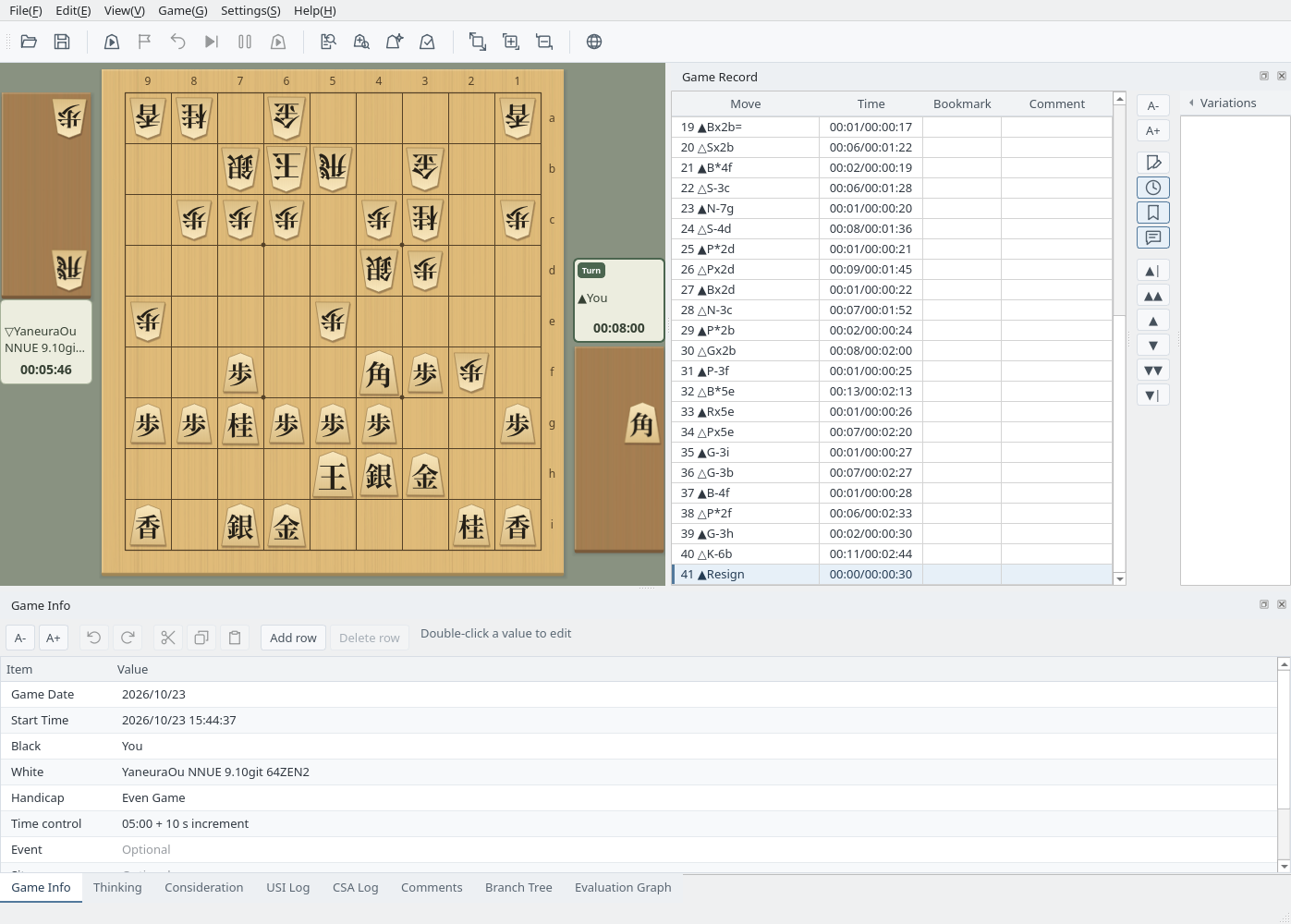
Game Info: details about the game
The Branch Tree tab shows moves in variations as well as the main line. If you use Take Back during a game and then play a different move, the moves you actually played become the main line and the moves you took back remain as a variation.
To continue from an earlier position, select it in the game record and start a new game with Starting Position set to Current Position; the new moves are recorded as a variation. If you select the “Abort” entry where a game was interrupted, the new moves continue that line instead of starting a variation. If you select another game-ending move such as a resignation, play continues from the position just before it.
When you continue a loaded game record from a later position, its game information such as the players and the handicap is kept, and the new players, start time and time control are recorded as a comment on the first new move. The cumulative time used continues from the totals in the record.
When no game is in progress, you can also add a variation by moving a piece on the board (see Branch Tree).
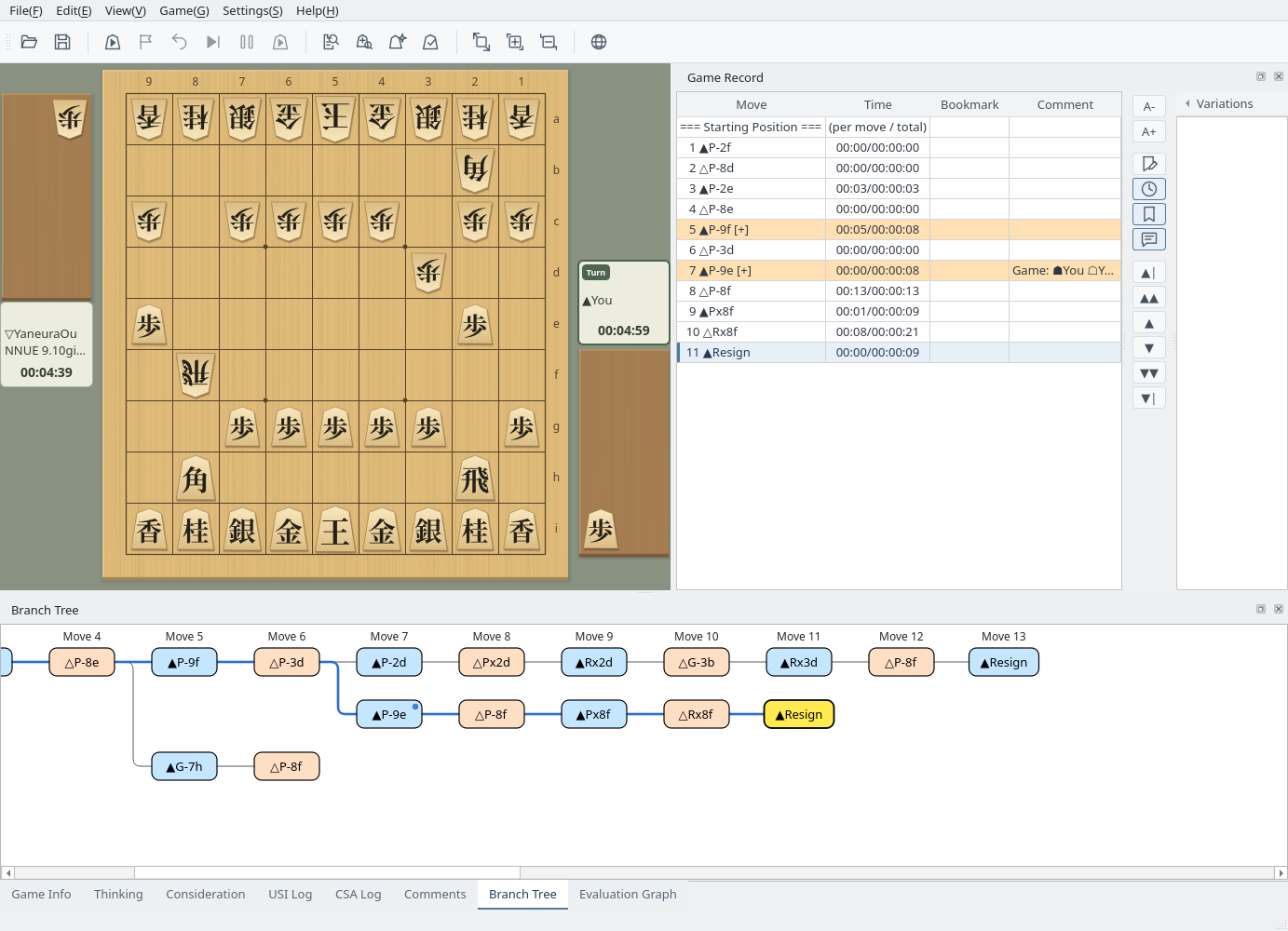
Branch Tree: the moves taken back with Take Back branch off at move 5, and the game continued from move 6 branches off at move 7
Repetition (sennichite) is detected automatically during a game. When the same position—the same board, pieces in hand, and side to move—appears for the fourth time, the game ends in a draw. If one side gave check with every move while the position was repeating, it is perpetual check, and the side giving check loses.
When the game reaches the Max Moves set in the game dialog, it ends as an impasse (jishogi), which is a draw. In each case the result appears in the Game Over message and is recorded at the end of the game record. Game record formats have no term for perpetual check, so it is recorded as “Win by illegal move” or “Loss by illegal move” against the side that kept checking, and the result is kept in every save format, such as KIF and CSA. These checks apply to human vs. engine, engine vs. engine, and human vs. human games; in CSA network games, the server’s decision applies.
When View → Show legal moves is on (the default), clicking a piece of the side to move highlights the squares it can move to in blue. Clicking a piece in hand shows the squares where it can be dropped. Only legal moves are shown, including captures and moves that can promote; you choose whether to promote after clicking the destination.
The highlights appear on a human player’s turn during a game, when you move pieces on the board outside a game, and in Tsume Shogi Play. The setting is kept the next time you start the app.
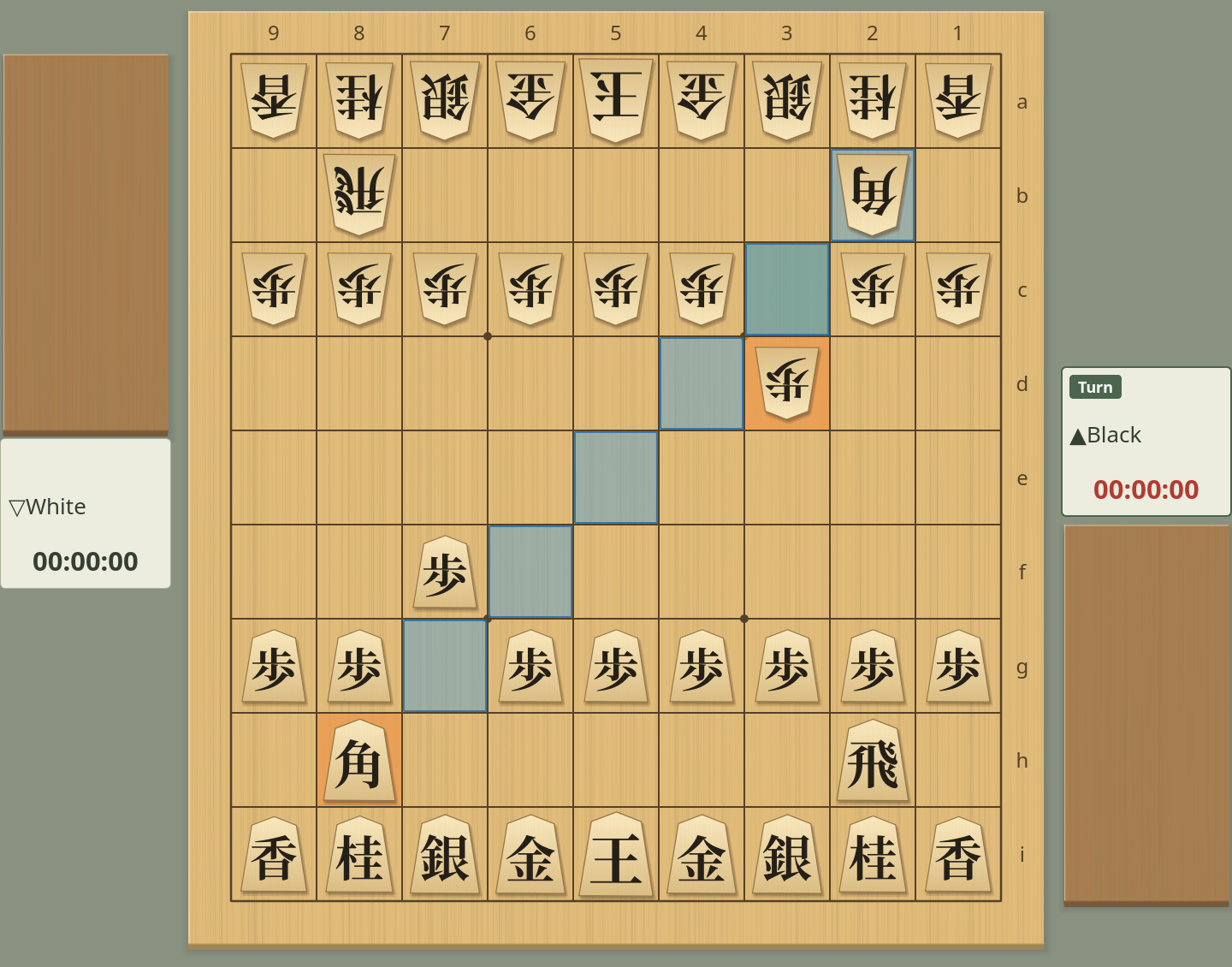
Legal moves for the bishop on 8h (2b captures the opponent’s bishop)
Game → Abort (also on the toolbar) interrupts the game: “Abort” is recorded at the end of the game record and the engines stop. No Game Over message appears, and the game record is not saved automatically. If you abort during continuous games, the next game does not start.
Game → Resume continues the aborted game right away. The game dialog does not open; the position, side to move, players, time control, and both sides’ remaining time are carried over, and engines are restarted to continue. The “Abort” entry is removed, and the game continues the same line in the record. The time used on the move that spans the interruption includes the time before and after it. Even if another move is shown in the record, the game returns to the aborted position.
You can resume a human vs. engine, engine vs. engine, or human vs. human game that you aborted until you quit the app. Resume is no longer available after you start a new game, open a game record or create a new one, change the record by moving a piece on the board or editing variations in the Branch Tree, or start editing a position. CSA network games cannot be resumed. To continue a saved game, select its “Abort” entry and start a game with Starting Position set to Current Position, as described in Branch Tree above; the clocks then start from the settings in the game dialog.
In a handicap game, the side that removes pieces is called Uwate (上手, the handicap giver) and the other side Shitate (下手, the handicap receiver). Uwate plays the White side and moves first. In the game dialog, the “Black / Shitate” column sets up Shitate and the “White / Uwate” column sets up Uwate.
In handicap games, ShogiBoardQ uses these names instead of Black and White in the following places.
- The players in the Game Info tab, and different times for each side (for example, “Shitate 10:00+30 / Uwate 05:00+30”)
- The “Game Over” message (for example, “Uwate ran out of time. Shitate wins.”) and the entering king declaration confirmation and result messages, including the confirmation in CSA network games
- Saved game records and position diagrams copied with Edit → Copy Position → BOD Format. See Save Game Record Files for how they are written.