Moves, comments, bookmarks and variations in the game record pane
Screenshots were captured on Linux with the English interface.
Moves, time, bookmarks and comments at a glance
The Game Record pane lists the moves from the starting position with their time (per move / total), bookmark and comment. When you select a move, its position appears on the board, and the Comments and Branch Tree tabs follow the same move. Select a move by clicking its row, with the Up and Down keys, or with the buttons on the right.
The Evaluation Graph tab has the same buttons, |◀ ◀◀ ◀ ▶ ▶▶ ▶|, at its top (see the Game Analysis guide).
Moves that have variations get an orange background and “[+]” after the move. The Variations list on the far right shows the alternatives when the selected move has any (click “◂ Variations” to collapse it).
Switch the notation of moves and board coordinates between Japanese (▲7六歩) and Western (▲P-7f) in Settings → Move notation and board coordinates. By default it follows the UI language (Japanese and Chinese use Japanese notation, English uses Western notation). See the Language Support guide for details.
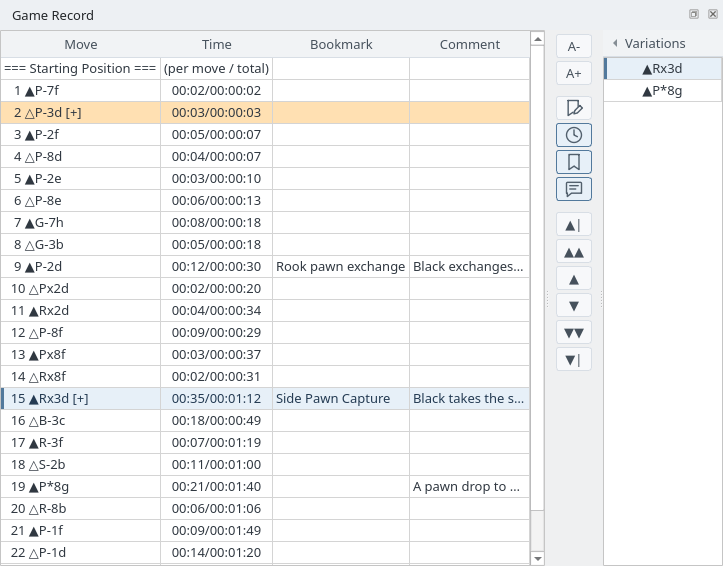
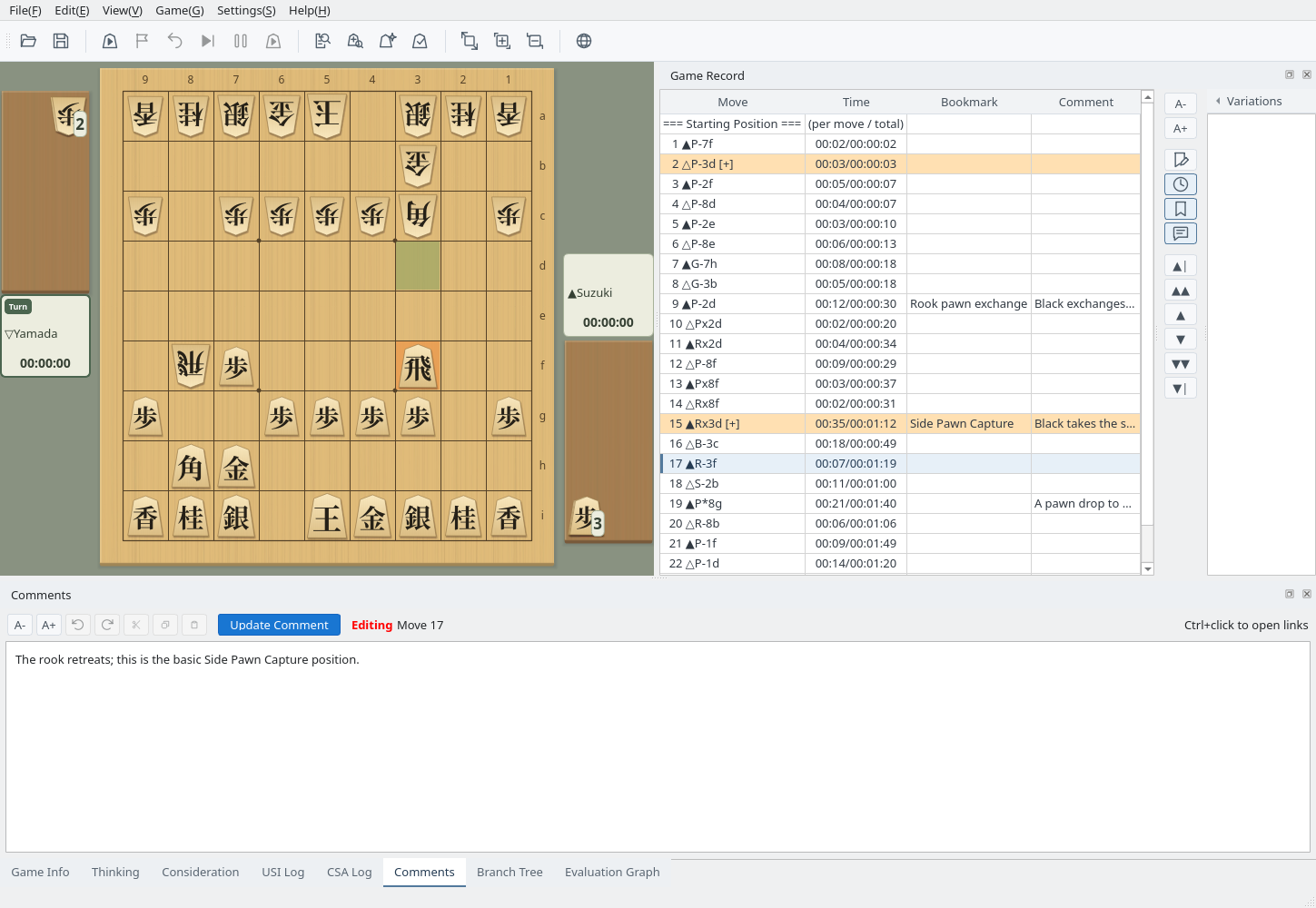
Game Record: the Time, Bookmark and Comment columns and the variations at move 15
Write a comment for the selected move
The Comments tab at the bottom shows the comment of the selected move. When you change it, “Editing” appears; click Update Comment (Ctrl+Enter) to apply it to the game record. Applied comments also appear in the Comment column.
URLs in comments become links that open with Ctrl+click. The buttons on the left change the font size and provide undo, redo, cut, copy and paste. Comments are saved in KIF, KI2, CSA and JKF files.
Comments: the comment of move 17 being edited (Editing)
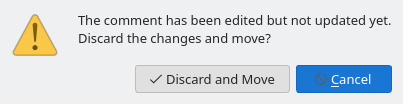
If you try to move to another move without clicking Update Comment, a confirmation appears. Discard and Move throws away the edit and moves; Cancel stays on the current move. This applies to clicking the game record, the buttons, the Variations list, the branch tree and the Evaluation Graph buttons alike.
Unapplied comment
Name the moves you want to find again
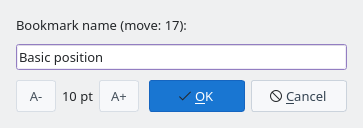
Select a move, click the Edit Bookmark button, enter a name and click OK; it appears in the Bookmark column. Clicking OK with an empty name removes the bookmark.
Bookmarks are saved in KIF and KI2 files and shown again when the file is loaded.
Edit Bookmark
Switch between alternative lines
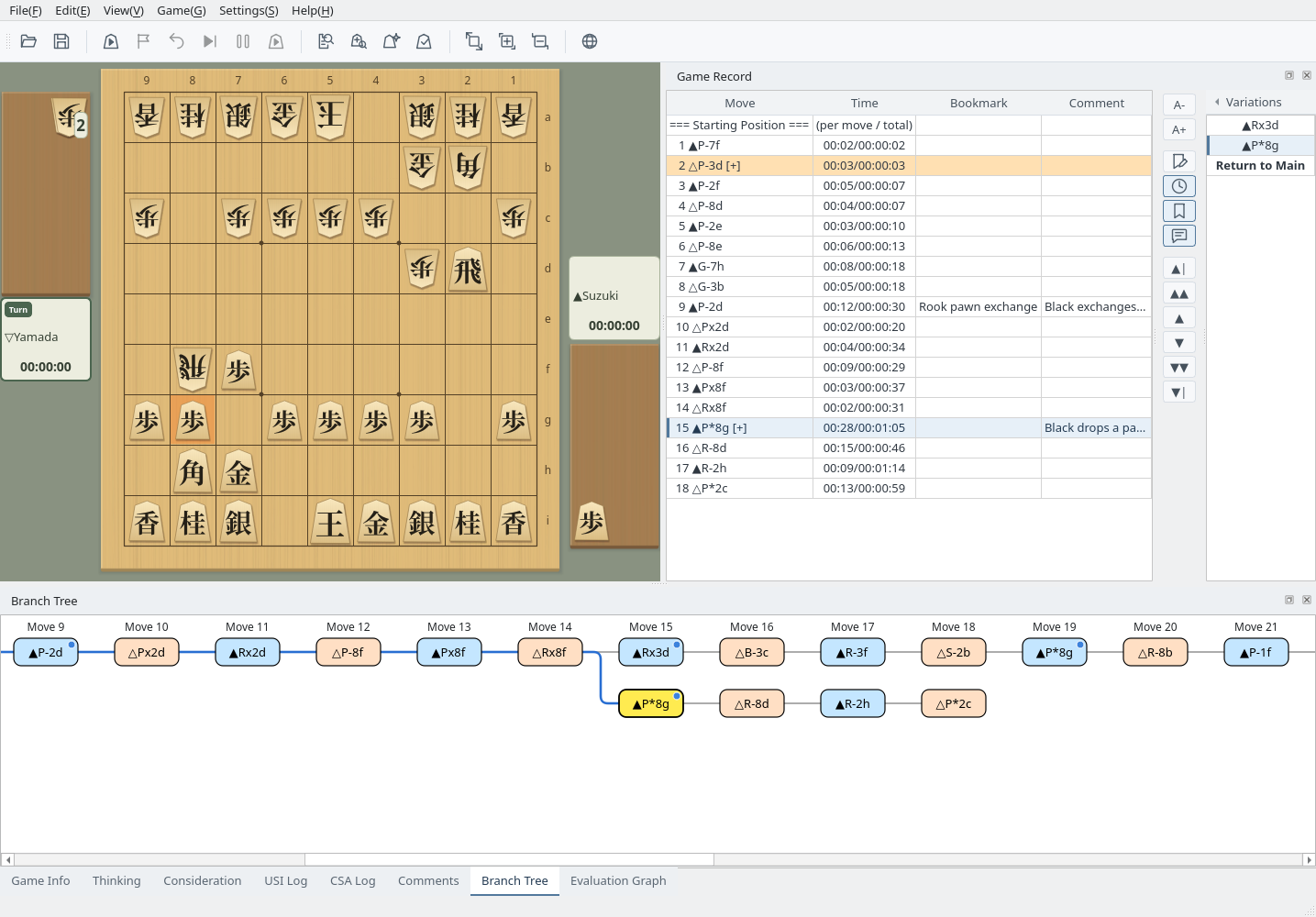
When you select a move that has variations, the Variations list shows the main-line move and the alternatives. Click one to switch to that line; the game record then shows the variation. While a variation is displayed, Return to Main at the end of the list goes back to the same move number in the main line.
The Branch Tree tab shows the main line (top row) and every variation. The current move is yellow, and clicking a move goes to that position. When the current move is outside the visible area, the tree scrolls to show it. For the file formats that keep variations, see the Kifu Management guide.
Variations: ▲P*8g chosen at move 15 with the Branch Tree tab shown
Right-click a move in the branch tree or the Variations list to make that line the main line, change the order of the variations, or delete the moves from there on. These operations, along with collapsing variations, zooming, and adding variations by moving pieces on the board when no game is in progress, are described in the Branch Tree guide.